
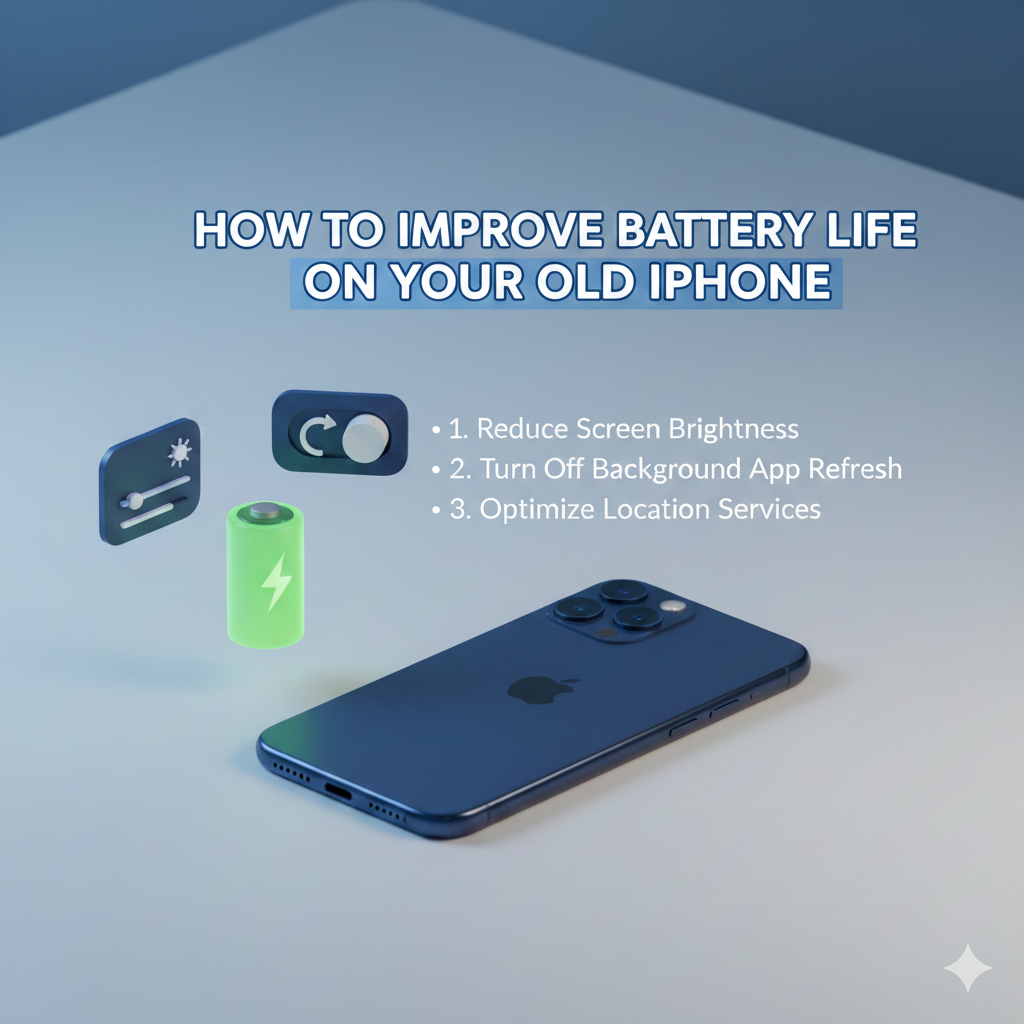
There are very few chances that you would want to splash money on a new iPhone, and I get that. iPhone is one of the most optimized smartphones, and it doesn’t even feel old when it comes to performance, but I can’t say the same for battery.
Even though iPhones are efficient, its batteries are affected as they charge and discharge over a long period of usage, just like every other smartphone. So, it is inevitable that you will be tired of charging your phone more than once a day.
The solution? There are some tricks that you can execute to improve the battery life of your iPhone. They involve some deep-buried settings that you either need to turn off or turn on.
Do you want to know more about them? Yes?
Great, I will be sharing the tips that helped me improve the battery life of my iPhone 12, which is a pretty old iPhone, but it works just fine.
| There might be some iOS settings (for improving battery life) that will only be available on the latest version of iOS. So, make sure to quickly update it before implementing the tips. Having said that, sometimes the iOS updates are so big that it takes hours to download, especially if you have a weak internet connection. That is why I recommend Spectrum Internet, which has been my choice for the last four years. Why specifically is Spectrum my choice? It offers affordable plans, a wide network of free WiFi hotspots, and above all, bilingual Spectrum servicio al cliente catering to Spanish speakers living in the US. |
Turn Off “Hey Siri” Voice Detection
Whenever this feature is turned on, your iPhone microphone is pretty much active all the time, so that it can listen to your voice and activate the voice assistant. This indeed keeps sucking up the battery.
If you don’t use it much, it’s better you turn it off.
Let’s take a look at how you can turn it off:
- Open the Settings App
- Enter the Siri sub settings, and then search for a toggle of “Listen for”
- Now, turn that off, and that would be it
Don’t worry, you can still activate your assistant by just long-pressing the power button on your iPhone.
Disable Always-on-Display
I get that the Always-on-Display feature is one of the best features in any smartphone these days. You can just glance at the screen and know the date, time, or if you have any particular notification that immediately needs your attention. All in all, it is great, but it comes at a cost – a cost of heavy battery consumption.
Every phone that has always been on display will have an AMOLED display. That display is efficient, but your old battery isn’t. It still trickle-consumes the battery, and you will be needing to charge it again if you have turned this feature on. So, just turn it off, and press the power button if you need to look at the information on your screen.
Follow the steps to disable always-on-display (AOD) on your old iPhone:
- Go into the settings
- Now, open the Brightness and Display and search for the AOD toggle
- Turn that toggle off to switch it off
Put Off the Haptic Feedback
This will be a huge bump up in your battery life because vibration is one of the most power-consuming aspects of any phone, not just the iPhone. Why is that? It happens because of the physical vibration motor inside your phone, which is totally not power-efficient.
Yeah, you will miss the satisfying feeling of the haptic feedback while using your phone, but that is all you need to enhance the battery life on your phone. So, just turn it off by following these steps:
- Open the Settings App on your iPhone
- Now, go into the Sounds & Haptics
- Look for the Keyboard Feedback toggle, and turn it off
Last but Not Least, Use Low Power Mode
This is one of the best things you can do to improve the battery life on your old iPhone. Let me explain: when the low power mode is not on, your phone keeps all the processing power available to all the processes in your phone, and this isn’t particularly a good thing when it comes to the efficiency of your phone. Sometimes your phone doesn’t need much of resources, and they can be reserved.
This reservation is achieved when you turn on the low power mode. It limits the screen brightness and other nice-to-have but not particularly necessary settings of your iPhone. So, do use it to increase the battery life on your iPhone.
How do you turn on the low-power mode? Follow these steps:
- As always, go into the Settings App
- Look for Battery, and then turn the toggle on for the Low Power mode
Your battery on your old iPhone might not be healthy, but you can support it by using the tips I have mentioned in this content piece.