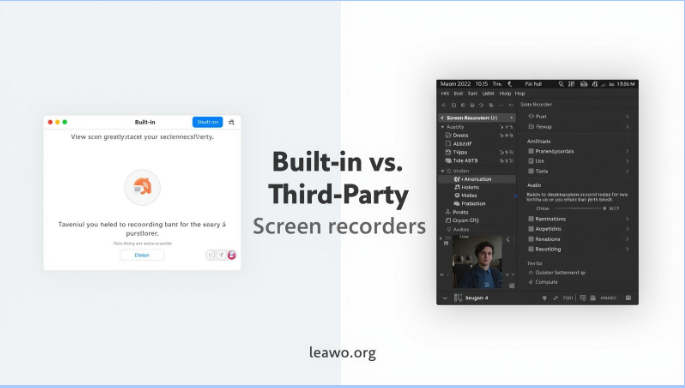
Screen recording has become essential for many people. Teachers use it to create lessons. Gamers record their gameplay. Workers share tutorials with colleagues. When you need a screen recorder, you face two main choices: built-in tools or third-party software. Both options have benefits. This article helps you decide which is better for your needs.
Part 1: What Are Built-In Screen Recorders?
Built-in screen recorders come with your device. You don’t need to download anything extra. They are ready to use right away.
Windows users have the Game Bar. Press Windows + G to open it. The tool was made for gaming but works for other tasks too. It records your screen with a few clicks.
Mac computers have two built-in options. The Screenshot toolbar offers basic recording. QuickTime Player provides more control. Both tools are free and simple to use.
iPhone and iPad users can record screens without apps. Open Control Center and tap the record button. Android phones also include screen recording. The feature is in the Quick Settings menu on most devices.
These tools work immediately. You don’t pay extra. They suit basic recording needs well.
Part 2: What Are Third-Party Screen Recorders?
Third-party screen recorders are separate programs. You download and install them yourself. They offer more features than built-in tools.
Many third-party options exist. Leawo Free Screen Recorder provides powerful recording without cost. Loom focuses on quick video sharing. Camtasia includes professional editing tools. XRecorder works well on mobile devices.
These programs give you more control. They have advanced settings. Some are free while others require payment. The best screen recorder depends on what you need.
Part 3: Key Comparison Criteria
1. Ease of Use
Built-in recorders are very simple. They have few buttons and basic settings. New users find them easy to understand. You start recording in seconds.
Third-party tools vary in complexity. Some are as simple as built-in options. Others have many features that take time to learn. The interface might feel overwhelming at first. However, you gain more power once you understand the program.
2. Device Compatibility
Built-in recorders only work on one system. Windows Game Bar doesn’t run on Mac. macOS tools don’t work on Windows. Each device has its own tool.
Third-party software often works across platforms. Many programs run on Windows, Mac, and Linux. Some have mobile versions too. You can use the same tool on all your devices. This makes workflow easier if you switch between systems.
3. Price
Built-in recorders cost nothing. They come free with your device. No subscription is needed. No hidden charges exist.
Third-party options have different pricing. Some are completely free. Others offer free trials with limited features. Premium versions can cost $20 to $300 or more. Free third-party tools sometimes show ads. Paid versions remove ads and unlock features.
4. Recording Performance
Built-in tools handle basic recording well. They capture your screen smoothly. Quality is usually good for simple tasks. However, they might struggle with long recordings or high resolutions.
Third-party recorders often perform better. They offer higher quality settings. Many support 4K recording. They handle longer sessions without issues. Some let you record at 60fps or higher. Performance depends on the specific program you choose.
5. Editing Features
Built-in recorders have minimal editing. Windows Game Bar offers almost no editing. Mac’s QuickTime allows basic trimming. You usually need another program to edit your videos.
Third-party tools excel at editing. Many include built-in editors. You can cut clips, add text, and insert effects. Some offer animations and transitions. Professional tools like Camtasia provide complete editing suites. Even free options often include basic editing features. This saves time since you work in one program.
Part 4: Best Scenarios for Each Type
Built-In Screen Recorders Are Best For:
Quick recordings work well with built-in tools. You capture a moment without preparation. Simple tutorials need no fancy features. Gaming clips for friends don’t require professional quality.
Personal use benefits from built-in options. You save money by using free tools. Casual users don’t need advanced features. If you rarely record screens, built-in tools are enough.
Third-Party Tools Are Best For:
Professional content creators need third-party software. YouTube videos require good quality and editing. Online courses look better with polished production. Business presentations benefit from professional features.
Regular users should consider third-party options. If you record screens often, better tools help. Advanced users want more control over settings. Screen recorders for PC offer many choices for Windows users.
Multi-device users benefit from third-party tools. Cross-platform software keeps your workflow consistent. Team collaboration works better with feature-rich programs. If you need specific features, third-party tools likely have them.
FAQs
1. Do built-in recorders capture system and microphone audio?
Most built-in recorders capture system audio. Windows Game Bar records game sounds and desktop audio. Mac’s built-in tools capture system sound too. Microphone recording is also supported on most devices. You can usually choose which audio sources to include. Check your settings before recording to ensure audio is enabled.
2. Are third-party tools safe to install?
Reputable third-party tools are safe. Download from official websites only. Read reviews before installing any program. Check if the software has good ratings. Avoid tools from unknown sources. Free programs from trusted developers are generally safe. Premium software from established companies is very safe. Use antivirus software for extra protection.
3. What if my built-in recorder isn’t working?
First, restart your device. Many problems fix themselves this way. Check for system updates next. Outdated software causes recording issues. Verify your permissions in system settings. Screen recording needs proper access to work. If problems continue, reinstall the recorder if possible. Consider using a third-party alternative as a backup option.
4. Can I record my webcam and screen at the same time?
Some built-in tools support this feature. Windows Game Bar can show your webcam. iOS screen recording captures face cam on newer devices. However, many built-in options lack this feature.
Third-party recorders handle this better. Most modern screen recorders include webcam support. You can position your face anywhere on screen. Size and shape are adjustable. This feature is common in free and paid versions.
Conclusion
Both built-in and third-party screen recorders serve different needs. Built-in tools are free, simple, and immediately available. They work perfectly for basic tasks and casual users. Third-party software offers more features, better quality, and professional editing. They suit content creators and regular users.
Your choice depends on your specific needs. Beginners should start with built-in options. Try them first before spending money. If you need more features, explore third-party alternatives. Many free options exist that rival paid programs. The best screen recorder is the one that matches your requirements and skill level.