
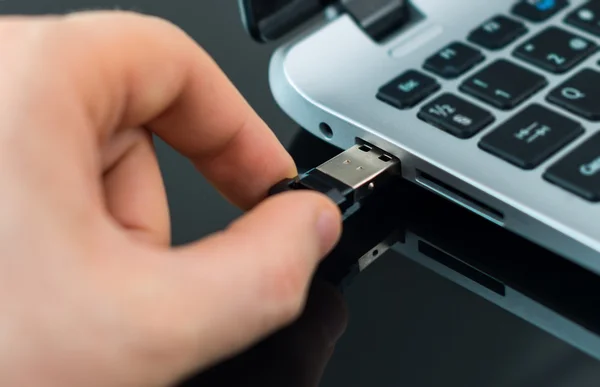
USB Drive Locked? Here’s How to Unlock Write Protection and Restore Access
There are few better ways to store and transfer files than with a USB flash drive. But, when users attempt to copy, edit, delete, or save a file, they encounter an annoying message stating that “The disk is write-protected”. When this occurs, the internal memory of the USB will become read only and cannot be written to.
If you are looking for how to remove write protection from USB, this guide will give you the reasons why this might be happening, and several effective solutions. More importantly, you will learn how to safeguard and recover your data before you can start attempting repairs. If you are looking for a USB write protected fix, need to remove write protection from a USB in Windows 10 or facing problems with USB not writable fix, this is for you.
Understanding USB Write Protection and Why It Happens
USB write protection security is a security way for keeping files from being changed on a storage medium. Write protection prevents adding new files, editing existing files, deleting content, formatting the drive, and allows users to view and copy files.
It can be intentional in some instances, but it quite often comes out of the blue, caused by software or hardware problem.
Common causes include:
- Physical lock switches are turned on on the USB drive.
- Corrupted file systems
- Affected LBA (sector address) numbers on the storage device.
- Malware or virus infections.
- Misconfigured windows registry settings.
- Incorrect disk attributes
- The security policies of the operating system.
- The failure of the USB drive hardware
It’s crucial to know the cause of the write protection because the correct remedy will vary depending on what caused it to occur in the first place.
Common Situations When a USB Drive Becomes Write-Protected
Users often don’t know that their USB drive has been write-protected until they try to perform some operation on a file. Some of the most common symptoms include:
The USB suddenly becomes read-only
You can still view and copy files but creating folders, renaming files or deleting content is not possible.
File Transfer Fails
Windows shows the following error message while copying files to the USB drive:
Remove write protection device or hand over another disk – the disk is write-protected.
The USB drive cannot be formatted
When users try to delete the disk drive, they will get formatting error even from Windows Disk Management and File Explorer.
System detects file system corruption
The computer may display a message about the damage to the file system and the need to repair it. But the repair process may not be able to complete due to a locked drive.
Files Become Inaccessible
In some instances, the USB drive can be physically full but show no data or have access to the files.
The fortunate thing is, in many cases the data is not lost and may even be recovered prior to applying fixes.
Important Step Before Fixing the Issue: Protect Your Data First
It is highly recommended to check the files before attempting anything to remove write protection.
Most repair procedures require changes in disk settings, system configuration, or even reformatting the disk. In case of failure, crucial files can be permanently lost.
Data Recovery should be a priority
In the event that the USB drive seems to be harmed or not available, the data on it might be recovered.
The situations in which the recovery should be performed first are:
- You are using a USB drive that doesn’t have any media.
- An error occurred when trying to open the USB.
- Drive requests formatting
- The file system is looking like it’s damaged.
- There are important documents or pictures on the device.
If you want to prevent any data loss, it is best to use a professional recovery solution like 4DDiG USB Data Recovery before using any repairs.
Why Choose 4DDiG Data Recovery?
4DDiG is capable of recovering lost files and files that are not accessible from a large number of storage media, including USB flash drives.
Key features include:
- Recovers data from USB drives that are listed as “No Media”
- Works with over 2000 file formats
- Recover photos, video, Office documents, archives and more
- Supports USB flash drives, SSDs, HDDs and SD cards
- Can preview files prior to recovery.
- Scans only for reading – no further damage
- Easy to use user-interface for novice users
If you are unable to write to your USB flash drive, have it repaired or recovered first, or it could be accidentally write-protected, or damaged, or even corrupted.
How to Recover Data from a Write-Protected USB Drive
Step 1: Select a Location
Launch 4DDiG Data Recovery and connect your USB drive to the computer.
From the list of available storage devices, select the affected USB flash drive and click Scan.
Step 2: Scan and Preview
The software will perform a deep scan to locate recoverable files.
During scanning, you can:
- Filter results by file type
- Search for specific filenames
- Preview photos, videos, documents, and other files
This allows you to verify that your data is recoverable before proceeding.
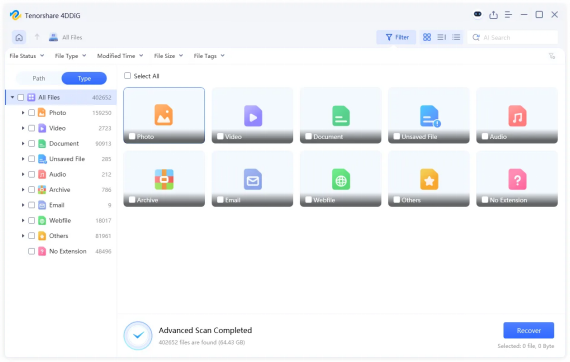
Step 3: Recover Files from the USB Drive
Select the files you wish to restore and click Recover.
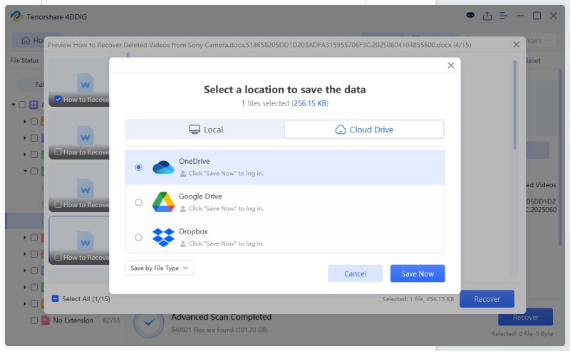
Save the recovered data to a secure location on your computer or another storage device.
Avoid saving recovered files back to the problematic USB drive until repairs are complete.
How to Remove Write Protection from USB: Step-by-Step Solutions
Once your data is safely backed up or recovered, you can proceed with fixing the write protection issue.
Fix 1: Check the Physical Lock Switch
Some USB flash drives and memory cards include a physical write-protection switch.
Although less common today, it is still worth checking.
Steps:
- Disconnect the USB drive.
- Examine the side of the device carefully.
- Locate any lock or unlock switch.
- Move the switch to the unlocked position.
- Reconnect the USB drive.
Try copying a file to determine whether the issue has been resolved.
Fix 2: Remove Write Protection Using Diskpart
Windows includes a built-in command-line utility called Diskpart that can remove read-only attributes from storage devices.
Steps:
- Press Windows + X.
- Select Command Prompt (Admin) or Windows Terminal (Admin).
- Type the following commands one at a time:
diskpart
list disk
select disk X
attributes disk clear readonly
Replace X with the disk number corresponding to your USB drive.
- Wait for the confirmation message.
- Type:
exit
- Disconnect and reconnect the USB drive.
This method often resolves write protection caused by incorrect disk attributes.
Fix 3: Modify Windows Registry Settings
Incorrect registry settings can also trigger write protection.
Important:
Create a registry backup before making changes.
Steps:
- Press Windows + R.
- Type:
regedit
- Press Enter.
- Navigate to:
HKEY_LOCAL_MACHINE\SYSTEM\CurrentControlSet\Control\StorageDevicePolicies
- Locate the WriteProtect value.
- Double-click it.
- Change the value from 1 to 0.
- Click OK.
- Restart your computer.
If the StorageDevicePolicies key does not exist, you may need to create it manually.
After restarting, reconnect the USB drive and test file operations.
Fix 4: Format the USB Drive Using Disk Management
If corruption is causing the issue, formatting may be necessary.
Only perform this step after backing up or recovering important files.
Steps:
- Press Windows + X.
- Select Disk Management.
- Locate your USB drive.
- Right-click the partition.
- Select Delete Volume.
- Create a new partition.
- Choose a file system:
- FAT32
- exFAT
- NTFS
- Complete the formatting process.
Once formatting finishes, the USB drive should become writable again.
Additional Fix: Run Error Checking
Windows includes a built-in disk repair utility.
Steps:
- Open File Explorer.
- Right-click the USB drive.
- Select Properties.
- Open the Tools tab.
- Click Check under Error Checking.
- Follow the repair prompts.
This can fix file system inconsistencies responsible for write protection errors.
Additional Fix: Scan for Malware
Malware sometimes modifies USB permissions to prevent file access.
Steps:
- Open Windows Security.
- Select Virus & Threat Protection.
- Run a Full Scan.
- Scan the USB drive separately if available.
Removing malware may automatically restore normal write access.
How to Prevent USB Write Protection Problems in the Future
Although most write-protection issues can be resolved, prevention is always better than recovery.
Always Use Safe Removal
Never unplug a USB drive while files are actively being transferred.
Use the Safely Remove Hardware option before disconnecting the device.
Avoid Untrusted Computers
Public or infected computers may alter USB settings or introduce malware.
Only connect your USB drive to trusted devices whenever possible.
Keep Regular Backups
Store important files in multiple locations, including:
- Cloud storage
- External hard drives
- Secondary USB devices
This reduces the risk of permanent data loss.
Scan for Malware Frequently
Maintain updated antivirus software and perform regular scans.
This helps prevent malicious programs from modifying storage permissions.
Use Compatible File Systems
Choose the appropriate file system based on your needs:
| File System | Best Use |
| FAT32 | Maximum compatibility |
| exFAT | Large files and cross-platform usage |
| NTFS | Windows environments and advanced permissions |
Using the correct file system can reduce compatibility-related write protection issues.
Monitor Drive Health
Storage devices wear out over time.
When a USB drive keeps becoming write protected, it could mean that the device is starting to wear out. Consider replacing aging drives before failure occurs.
Final Words
If you have a write-protected USB drive, this can be a frustrating problem but it is typically solvable. A variety of effective solutions can get your computer back to normal, whether the problem is caused by a physical lock switch, corrupted file system, wrong disk attributes, registry problems, or malware.
When making repairs, always ensure that the data is safe first. Important files can be recovered or backed up first to avoid the loss of important data in troubleshooting. For those who are desperate to recover their files from inaccessible or write-protected USB drives, there are professional recovery software, for instance 4DDiG USB Data Recovery, that can help you out safely and reliably.
With the help of the methods mentioned in this guide, you can easily bypass write protection from a USB drive, make a full write protection USB fix, remove write protection from a USB drive in Windows 10 version, and even clear most of the USB not writable fix problems without losing any important information.