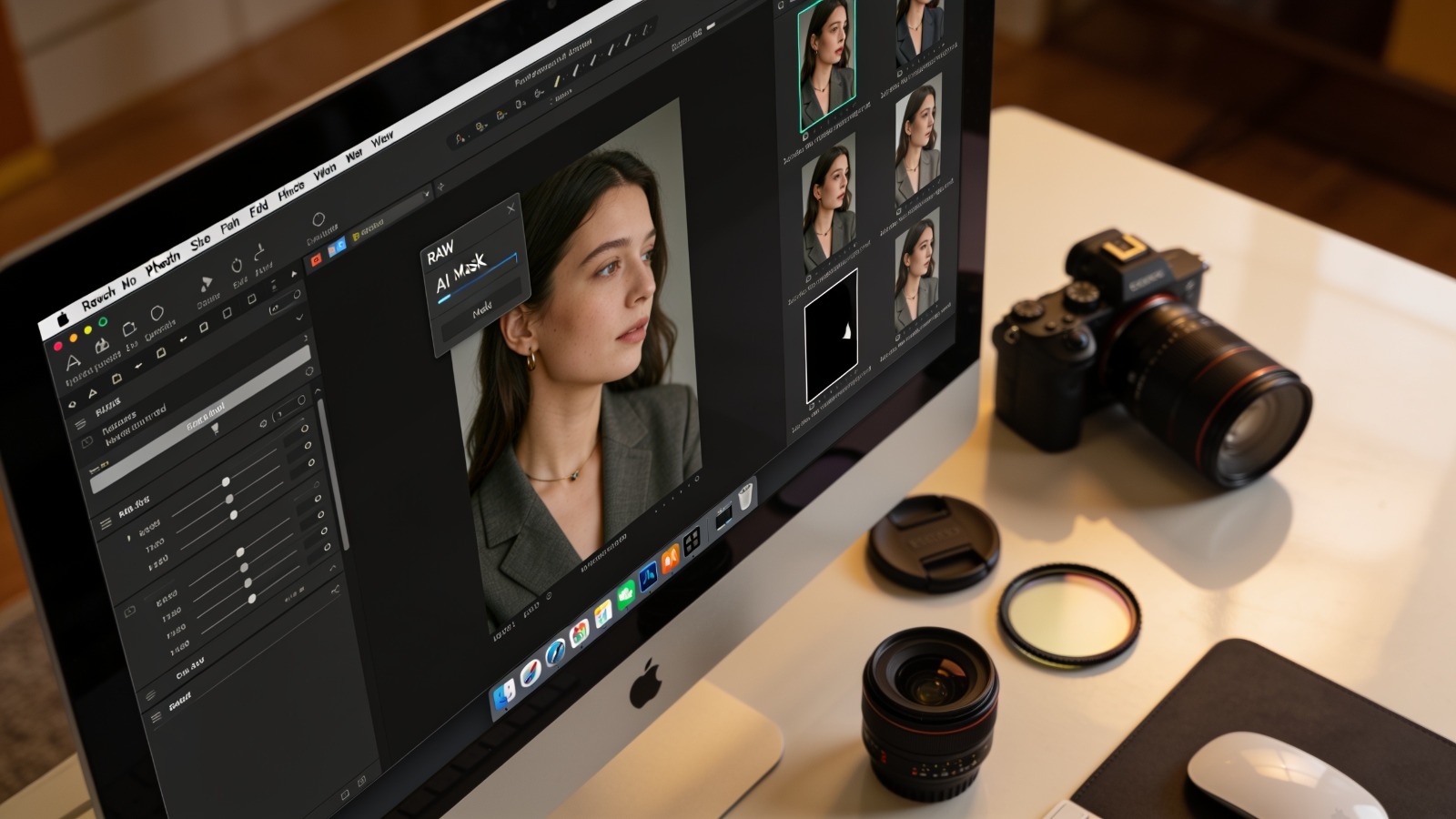
Photo RAW AI masking lets you select a subject, sky, or background in a raw file with a click, then apply local adjustments without hand-painting a mask. Once your raw edit is exported, Adobe Firefly’s AI photo editor picks up generative tasks, like removing distractions or expanding the frame, from JPEG, PNG, or WebP files.
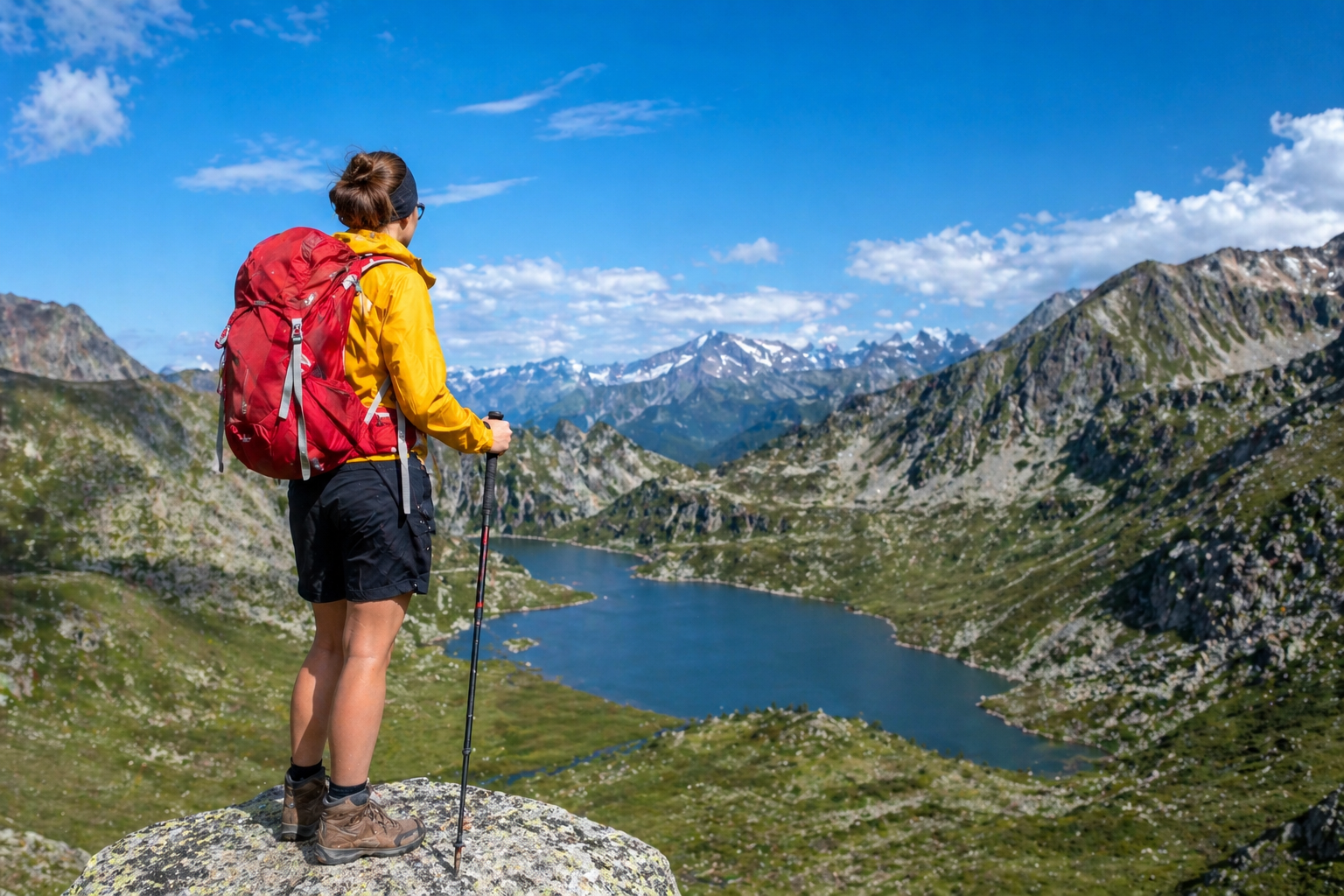
Imagine a landscape photographer coming home from a misty sunrise shoot with 400 raw files. Some frames were shot at high ISO in low light, almost every sky needs its own adjustment, and a few compositions would be perfect if not for a stray hiker or a too-tight crop. A raw workflow has to handle all of that without sacrificing the flexibility raw files offer. The good news is that AI now plugs into nearly every step: noise reduction, masking, automatic adjustments, and the generative fixes that used to send you into a pixel editor. The key is knowing which tool handles which step, and where each one expects your files to be.
Raw editors such as ON1 Photo RAW and Adobe Camera Raw work directly on the camera’s raw data, so their AI masks and noise reduction stay non-destructive. ON1 says Photo RAW supports raw files from more than 800 cameras and also works with JPEG, TIF, PSD, PSB, PNG, and DNG files. Firefly fits later in the chain. Adobe says Firefly’s photo editor accepts JPEG, PNG, or WebP files up to 100MB, and offers Prompt to Edit, Generative Remove, Generative Expand, Generative Upscale, and a Markup tool, with free daily generations on a free account. That makes it a natural finishing step after you develop and export your best frames.
What Does an AI Raw Workflow Look Like?
An AI raw workflow usually moves through four stages, with AI helping at each one.
Clean up first: Run AI noise reduction on high-ISO raw files before other edits, since cleaner data gives masks and adjustments a better starting point.
Mask and adjust: Use AI masks to separate subject, sky, and background, then refine tone and color in each area.
Batch the repeats: Save presets that include AI masks so they adapt to new photos from the same shoot.
Finish with generative edits: Export a JPEG or PNG and bring it into Firefly to remove the stray hiker, extend the sky for a vertical crop, or try a new background. Adobe says Firefly generations open easily in Adobe apps like Photoshop, so you can keep refining.
Keeping generative edits at the end protects your raw file as the untouched master.
Camera Raw AI Denoise and Masking
Camera Raw AI Denoise and masking are two of Adobe’s main AI tools for raw files.
Adobe says Camera Raw’s AI-powered Denoise removes noise from raw photos while preserving detail, and processes the image as a new DNG file with “Enhanced-NR” added to the file name. Adobe’s Julieanne Kost notes that Denoise works on Bayer and X-Trans raw files, can be batch-applied to selected images, and that masking automatically updates after Denoise runs.
For masking, Camera Raw offers AI-powered selections for Subject, Sky, Background, Objects, and People. Adobe says People masks can target specific features, including facial hair and clothes. A Phlearn tutorial also highlights Select Landscape, which generates separate masks for elements like the sky, mountains, and water. You can still add or subtract with brushes, gradients, and range masks for fine control.
Photo RAW AI Features for Raw Files
Photo RAW AI features for raw files cover masking, noise reduction, sharpening, and automatic adjustments. The table below compares how they line up with other tools in a raw workflow.
| Tool | Best for | Key AI features |
| Adobe Firefly | Generative finishing after raw export | Prompt to Edit; Generative Remove, Expand, and Upscale; Markup tool; JPEG, PNG, or WebP up to 100MB; commercially safe Firefly models |
| ON1 Photo RAW | All-in-one raw editing | Super Select AI; Quick Mask AI; automatic subject and background masks; NoNoise AI; Tack Sharp AI; AI Adaptive Presets; Brilliance AI |
| Adobe Camera Raw | Raw processing inside Photoshop | AI Denoise to a new DNG; Subject, Sky, Background, Objects, and People masks |
ON1 says its improved Super Select AI can identify and select any object, not just ones it recognizes, by clicking on it. Its AI Adaptive Presets save presets with AI-generated masks so effects automatically adapt to the right regions in new photos.
Does Photo RAW Have a Develop Assistant AI?
Photo RAW’s closest equivalent to a develop assistant AI is Brilliance AI, which analyzes a photo and suggests adjustments for you.
ON1 says Brilliance AI provides intelligent color and tone adjustments and goes further by automatically adding local adjustments to different parts of a photo. ON1 also lists options to auto-apply NoNoise AI and portrait retouching with Brilliance AI, and to batch-apply Brilliance AI adjustments across images.
For photographers who use more than one app, the MAX edition of Photo RAW can run as a plugin inside Photoshop, Lightroom Classic, Apple Photos, Capture One, Affinity Photo, and Corel PaintShop Pro, according to ON1.
An assistant-style starting point works best as a first draft. Review its local adjustments, keep the ones that suit your vision, and fine-tune the rest manually before exporting for any generative finishing in Firefly.
FAQ
Can Firefly edit raw files directly?
No. Adobe says Firefly’s photo editor accepts JPEG, PNG, or WebP files up to 100MB. Develop your raw file in a raw editor first, then export it for generative edits.
Should I denoise before or after masking?
Denoise first. Cleaner raw data helps AI masks find edges more accurately, and Adobe notes that Camera Raw masks update automatically after Denoise.
Can I try Photo RAW before buying?
Yes. ON1 offers a 30-day free trial of Photo RAW and says no credit card is required.