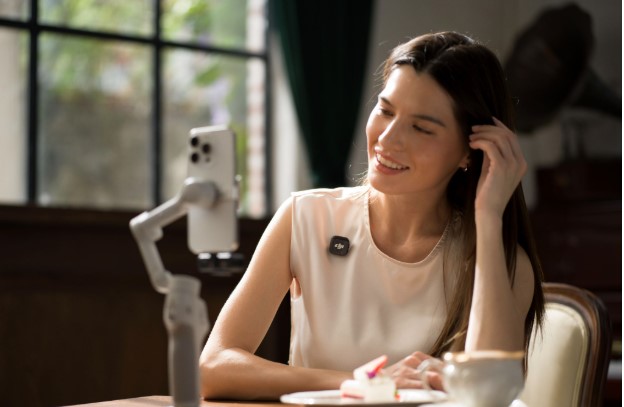
A wireless microphone can make a live stream look much simpler. The presenter is free to move, the camera can sit farther away, and there is no microphone cable running across the desk or floor.
Behind that simple setup, however, several connections may be working at once. Audio travels from the transmitter to the receiver, from the receiver to a phone, camera or computer, and then through streaming software before viewers finally hear it. If any part of that chain is configured incorrectly, the result can be delayed audio, drifting lip sync or a stream with no microphone sound at all.
The safest approach is to understand the complete signal path before going live.
Start by deciding where the audio needs to go
The first question is not which microphone setting to use. It is where the stream is actually being created.
A phone-based TikTok, Instagram or YouTube Live setup has different requirements from a camera feeding a computer through a capture card. A desktop stream using OBS-style software adds another stage where audio and video may need to be aligned.
For a simple mobile stream, a transmitter may be able to connect directly to a compatible device. For a more controlled production, using a dedicated receiver usually gives more flexibility over channels, monitoring and connection options.
When choosing a wireless mic for live streaming, it is therefore worth thinking beyond transmission range. Connection method, monitoring, multi-person support and how the audio enters the streaming device are usually more important.
Pairing and connecting are not quite the same thing
A transmitter first needs to communicate with the receiver or compatible recording device. That is the wireless pairing stage.
The receiver then needs to deliver that audio to the device creating the stream. Depending on the setup, this may happen through USB-C, a mobile phone adapter or a 3.5mm audio connection.
DJI Mic 3 simplifies the first stage because transmitters and receivers stored in the charging case can be linked as part of the normal setup workflow. The system can also scale beyond a basic single-presenter configuration.
A DJI Mic 3 Receiver supports connection with up to four transmitters, while individual transmitters can work with multiple receivers in more advanced setups. That can be useful when several presenters need separate microphones or when the same performance is being captured by more than one recording device.
For a normal one- or two-person livestream, however, keeping the system simple is usually better than building the largest possible wireless network.
Direct Bluetooth is convenient, but the receiver offers more control
DJI Mic 3 transmitters can connect directly to a smartphone over Bluetooth. DJI specifies that a phone connects to one Mic 3 transmitter at a time through this method.
That can be useful for a very compact single-person stream because there is no receiver hanging from the phone.
For interviews, two-host streams or more controlled productions, the receiver is generally the more versatile route. It allows multiple transmitters to feed the same system and provides a clearer central point for adjusting settings and monitoring the audio chain.
The key lesson is to choose one connection method deliberately. Do not assume that because a transmitter appears paired over Bluetooth, a separate receiver connection is also automatically being used by the streaming app.
Before going live, make a short private test recording or test stream and confirm which microphone source the device is actually receiving.
Where does livestream latency come from?
Wireless audio does introduce processing and transmission time, but it is only one part of livestream latency.
A typical chain might look like this:
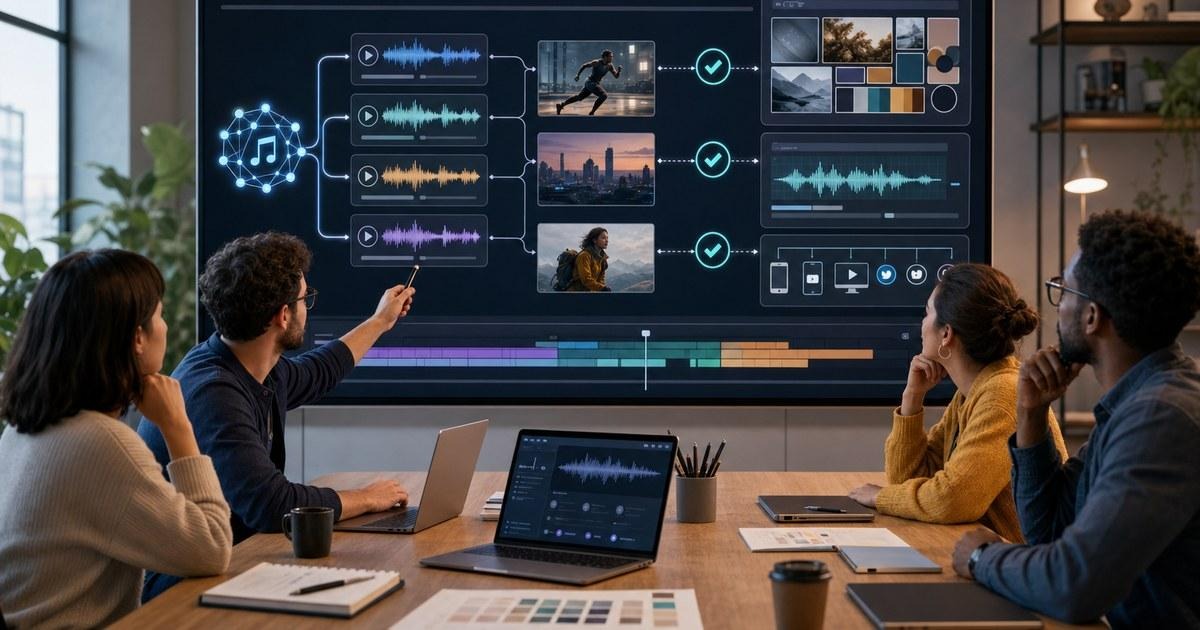
Microphone → wireless receiver → phone or camera → capture device → streaming software → streaming platform → viewer
Each stage can add delay.
If the camera passes video through a capture card while the microphone enters the computer directly over USB, the video and audio are travelling along different paths. The camera signal may require more processing, which can make the microphone appear to arrive too early.
In another setup, audio and video may enter the phone together but the streaming platform itself adds several seconds before the audience receives the stream. That delay affects interactivity, but it does not necessarily mean the presenter’s lips are out of sync.
This is why there is no single useful latency number that describes every wireless livestream setup.
Test lip sync at the final destination
A microphone can sound perfectly synchronised in local monitoring while the recorded or streamed result is slightly different.
The easiest practical check is a clap test.
Stand where the presenter will be, start the complete streaming or recording chain and clap clearly in view of the camera. When reviewing the test, the sound of the clap should line up with the moment the hands meet.
If the audio arrives earlier or later, look at the routing before changing microphone settings.
Streaming software often provides a way to add a deliberate audio delay or synchronisation offset. This can compensate when the video path through a camera and capture device takes longer than the audio path.
Make that adjustment only after testing the actual system. A delay copied from somebody else’s setup may be wrong because their camera, capture card and computer are different.
Timecode is useful, but it does not fix livestream delay
DJI Mic 3 includes integrated timecode, which is extremely useful in multi-camera production.
DJI supports common frame rates including 23.98, 24, 25, 29.97, 30, 50 and 60fps. Under DJI’s specified test conditions, its timecode system is rated for less than one frame of deviation over 24 hours.
That is valuable when several recorded cameras and audio files need to be aligned accurately in post-production.
It should not, however, be confused with live lip-sync correction.
Timecode gives recorded devices a common timing reference. It does not automatically remove processing delay from a capture card, streaming application or online platform.
For a stream that is being edited later as well as broadcast live, both tools can matter: timecode helps the recorded master files, while the live production software handles real-time audio/video alignment.
DJI Mic 3 adds useful protection against changing voice levels
Live streaming leaves little room to repair clipped dialogue afterwards.
DJI Mic 3 includes Adaptive Gain Control with two approaches. Automatic mode is designed to help prevent clipping when sound levels change suddenly, while Dynamic mode adjusts gain to maintain more consistent loudness.
That can be useful when a presenter moves from calm conversation to a louder reaction, or when two hosts naturally speak at different levels.
The system also offers three voice tone presets: Regular, Rich and Bright. For livestreaming, clarity is normally more important than making the voice sound heavily processed, so these should be treated as starting points rather than automatic improvements.
Two levels of noise cancelling are also available. In a quiet room, aggressive noise reduction may be unnecessary. In a busier environment, stronger processing can help keep speech intelligible.
A short headphone check before going live is still more valuable than choosing settings purely from their names.
Dual-band wireless helps in busy environments
Wireless congestion can become a problem at events, offices and studios filled with phones, routers and other radio equipment.
DJI Mic 3 can automatically work across 2.4GHz and 5GHz bands to improve resistance to interference. DJI quotes a maximum transmission distance of up to 400 metres with Lossless Audio disabled, measured in an open, unobstructed environment without interference.
That figure should not be treated as a normal indoor streaming distance.
Walls, people, Wi-Fi networks and other wireless devices can reduce real-world range significantly. A livestream presenter standing five metres from the receiver usually benefits more from a clean, stable link than from testing how far the transmitter can travel.
The receiver should therefore remain reasonably close and should not be buried behind computers, metal structures or other equipment unless necessary.
Internal recording provides a valuable backup
One advantage of DJI Mic 3 for important livestreams is that each transmitter also has built-in recording capability.
The transmitters include 32GB of internal storage and support both 24-bit and 32-bit float recording. They can also save dual files, including an original track and an algorithm-processed version depending on the selected workflow.
This does not repair a failed live broadcast, because viewers only hear what reaches the stream in real time.
It can, however, save the final video.
If the livestream experiences a network problem, a receiver interruption or poor audio routing, the locally recorded microphone track may still be available for an edited replay, social clip or archived version afterwards.
For an interview, product launch or event stream that cannot easily be repeated, enabling an appropriate internal backup is worth considering.
Battery life matters more on live streams than normal shoots
A livestream cannot easily stop for a battery change in the middle of an interview.
DJI rates the Mic 3 transmitter for up to 8 hours and the receiver for up to 10 hours under its specified close-range test conditions with features such as noise cancelling and internal recording disabled.
The charging case extends the complete system to up to 28 hours of operating time across recharges. A five-minute charge can provide about two hours of additional use under DJI’s controlled conditions.
Those numbers will vary depending on the features being used. For example, DJI states that enabling Lossless Audio reduces transmitter battery life by approximately two hours under nominal conditions and also reduces the stated maximum transmission range.
For a long livestream, it is therefore better to begin with every component fully charged rather than relying on maximum laboratory figures.
The simplest signal path is usually the safest
For a single presenter streaming directly from a phone, a simple Mic 3 connection may be all that is required.
For two presenters, cameras or computer-based streaming, the receiver becomes much more useful. Its multi-transmitter support, USB-C and 3.5mm output options, monitoring controls and integrated timecode make the system easier to expand as the production becomes more complex.
The important thing is not to add complexity before it is needed.
Pair the microphone, confirm the correct input device, monitor the signal, perform a clap test and check the final streamed result before the audience arrives.
DJI Mic 3 provides strong tools for that workflow, including multi-transmitter support, dual-band wireless transmission, Adaptive Gain Control, internal 32-bit float recording and integrated timecode. Used correctly, those features help solve different parts of the production chain.
Keeping a livestream in sync still depends on understanding one simple principle: the microphone is only the beginning of the audio path, not the end of it.