WhatsApp conversations can contain far more than casual messages. People use chats to record decisions, discuss projects, resolve customer issues and share photographs or documents. As a conversation grows, however, finding and organising important information becomes increasingly difficult.
Screenshots may preserve a few messages, but they are inefficient for long conversations. Copying text manually can remove timestamps and context. A structured chat export offers a more practical alternative by turning selected messages into a file that can be read, reviewed or processed outside WhatsApp.
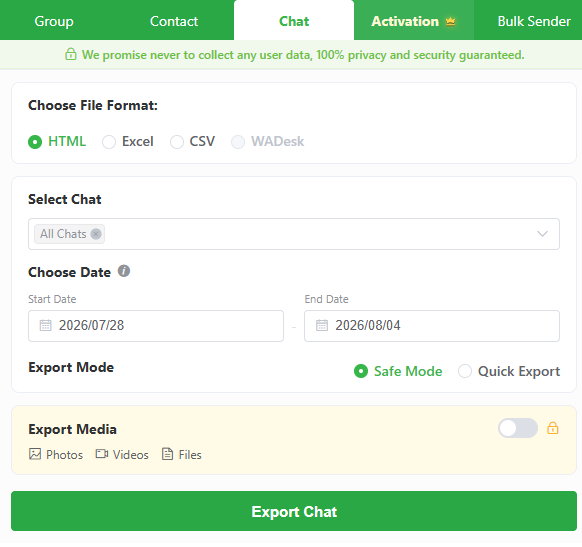
WAExport provides this functionality through HTML, Excel and CSV exports. Users can choose a conversation, define a date range, select an export mode and decide whether media should be included.
What Is WAExport?
WAExport is a browser-based tool designed to turn selected WhatsApp conversations into HTML, Excel or CSV files. Instead of exporting an entire history without control, users can set a start and end date before creating the file.
The main controls include:
- Chat selection
- Start and end dates
- HTML, Excel and CSV formats
- Safe Mode and Quick Export
- Optional photo, video and file exports
These options make the tool suitable for different purposes. A readable personal archive has different requirements from a spreadsheet used to review customer service messages.
WAExport should be understood as a selective chat export tool rather than a complete device backup or certified compliance archive.
Why Screenshots Are Not Enough
Screenshots are convenient when only one message needs to be preserved. Problems appear when a conversation contains hundreds of messages.
A screenshot-based archive may involve dozens of image files with unclear names. The text is harder to search, messages may be placed in the wrong order and important context can easily be missed.
Manual copying has similar weaknesses. It takes time and may remove information about who sent a message or when it was sent.
Exporting the conversation into one structured file makes the content easier to store and review. The best file format depends on what the user plans to do next.
HTML: Best for Readable Archives
HTML is generally the most convenient choice when the main objective is to read a conversation.
The file can be opened in a web browser and reviewed in sequence. This makes HTML useful for:
- Personal conversation archives
- Project handovers
- Customer support cases
- Order documentation
- Records of important decisions
HTML does not require spreadsheet knowledge, making it accessible to users who simply need a readable copy.
If the export creates a supporting media folder, it should be stored with the main HTML file. Separating the files may prevent linked content from displaying correctly.
An HTML export can also be edited after it is created. It should therefore be treated as a working archive rather than automatically accepted as tamper-proof legal evidence.
Excel: Best for Sorting and Manual Review
Excel is more suitable when users need to organise messages in a spreadsheet.
A conversation exported to Excel can be reviewed by date, participant or other available fields. Users may also add internal notes or classifications.
This format can support tasks such as:
- Reviewing customer questions
- Categorising recurring support issues
- Identifying messages from a particular period
- Preparing an internal project summary
- Recording follow-up actions
Spreadsheet files may contain personal or confidential information. They should not be shared widely simply because they are easy to attach to an email.
Before sharing an Excel export, remove unnecessary messages and confirm that every recipient is authorised to view the content.
CSV: Best for Structured Processing
CSV is a simple file format supported by many data and reporting applications. It is useful when message data needs to be processed outside a normal chat interface.
Unlike Excel, CSV does not preserve advanced visual formatting. Its strength is compatibility.
Users should test a small file before processing a long conversation. Spreadsheet and database applications may interpret dates, special characters or long numerical values differently. Checking the output early can prevent larger data-cleaning problems later.
CSV is not automatically the best option simply because it is flexible. Users who only want to read a conversation will usually find HTML more convenient.
How to Choose a Date Range
A long chat may contain years of messages, while the user only needs information connected to one project or event. Selecting a start and end date keeps the export focused.
A limited range can:
- Reduce the file size
- Make the conversation easier to review
- Exclude irrelevant personal information
- Limit unnecessary data retention
- Shorten the export process
For example, a customer service review may only require messages between the date a complaint was opened and the date it was resolved. A project handover might include the most recent month rather than the complete relationship history.
The selected dates should be checked before the export begins. An incorrect range can either omit necessary messages or collect more information than intended.
Safe Mode vs Quick Export
WAExport offers Safe Mode and Quick Export.
Safe Mode uses a more measured export process and may be preferable for longer conversations or an initial test. Quick Export prioritises speed and may suit smaller chats or familiar workflows.
The best practice is to begin with a short date range. This allows the user to verify the selected conversation, format and file structure before exporting more content.
Neither option removes the need to check the final file. Export settings determine how the process runs, but the user remains responsible for confirming that the result is complete and appropriate.
Should Photos, Videos and Files Be Included?
Messages are often only one part of a WhatsApp conversation. Chats may also contain product photographs, receipts, design files, invoices or videos.
A WhatsApp conversation exporter is most useful when it allows users to control whether this media is included instead of collecting every shared file automatically.
Media should be included when it is essential to understanding the conversation. Examples include:
- Photographs of delivered or damaged products
- Design drafts and approvals
- Receipts or shipping documents
- Technical files
- Images required for a project handover
If the purpose is only to review written messages, media can normally be excluded. This keeps the export smaller and reduces the amount of potentially sensitive information being stored.
How to Export a Chat with WAExport
The basic process is straightforward.
Step 1: Select the Chat
Choose the conversation that needs to be exported. Confirm that the correct WhatsApp account and chat are active.
Step 2: Set the Dates
Enter the required start and end dates. Keep the range limited to the purpose of the export.
Step 3: Choose a Format
Select HTML for reading, Excel for manual review or CSV for structured processing.
Step 4: Select an Export Mode
Choose Safe Mode or Quick Export based on the size of the conversation and whether the settings have already been tested.
Step 5: Configure Media
Decide whether photos, videos and files are required. Avoid including them by default.
Step 6: Run and Review the Export
Create the file, open it and confirm that messages, dates and requested media appear correctly.
Useful Export Scenarios
WAExport can support both personal and professional use cases.
Individuals may want to preserve an important conversation in a readable format. Freelancers can export project discussions before closing a contract. Small businesses may retain selected customer support records, while teams can use chat exports during an authorised project or account handover.
The same tool can serve these different situations because users can change the dates, format and media settings for each export.
File Storage and Privacy Tips
An exported chat may contain telephone numbers, addresses, personal messages and confidential files. Once downloaded, it must be protected separately from the WhatsApp application.
Users should:
- Store files in an approved location
- Restrict access to people who need the information
- Avoid leaving exports in a shared downloads folder
- Encrypt sensitive archives when appropriate
- Delete temporary copies
- Remove files when they are no longer required
- Avoid exporting unrelated conversations
The ability to export a chat does not automatically create permission to share or retain it indefinitely.
Frequently Asked Questions
Which format is easiest to read?
HTML is normally the most readable because it can be opened directly in a browser.
Which format is best for reviewing messages?
Excel is useful when messages need to be sorted, filtered or labelled manually.
Can WAExport limit the export by date?
Yes. Users can select a start and end date before exporting the conversation.
Can chat media be exported?
Users can choose whether to include photos, videos and files.
Is an exported chat a complete WhatsApp backup?
No. It is a separate copy of selected conversation content, not a complete account or device backup.
Conclusion
WAExport turns selected WhatsApp conversations into HTML, Excel or CSV files. Its date controls, export modes and optional media settings allow users to adapt each export to a specific purpose.
HTML works best for readable archives, Excel supports manual review and CSV provides a flexible format for structured processing. Choosing the right option helps users avoid unnecessary work and oversized files.
Whatever format is selected, the final export should be reviewed and stored securely. A clear purpose, limited date range and careful media selection can turn a difficult-to-manage chat history into a more useful and organised record.