Key Takeaways
- Select from a variety of trusted online resources to convert documents quickly, all with simple interfaces that don’t demand much technical expertise.
- Use batch processing, drag-and-drop uploads, and see real-time previews to save work and time.
- Select platforms with encrypted file handling and automatic deletion of converted files to keep your documents secure and private.
- Make your converted documents more accessible and functional with advanced tools such as OCR technology and editing features.
- Enjoy cloud access and mobile-friendly apps for easy document conversion, editing, and collaboration anywhere on any device.
- Put these fixes to work for better document management, increased productivity, and multi-format compatibility in your personal and professional life.
By converting documents quickly, we mean taking files from one format to another in less time and with fewer steps. Easy, fast document conversion makes sharing, editing, and archiving simpler for teams, students, and businesses.
A variety of tools now allow you to quickly convert file types like PDF to Word or images to text with only a few clicks. Here, we detail our top ways to accelerate the process and provide tips for selecting the best tools for any requirement.
1. ConvertPdf
ConvertPDF stands out for its simple and user-friendly platform that makes document conversion fast and hassle-free. Whether you’re a student preparing assignments or an office professional handling reports, the tool helps users complete everyday document tasks with minimal effort.
The interface is clean and intuitive, which means even first-time users can convert files without confusion. All the essential options are easy to locate, so converting documents takes only a few clicks.
For example, if you have several Word resumes that need to be shared professionally, you can quickly convert them into PDF format without navigating complicated menus or settings. The platform works smoothly on both desktop and mobile devices, making it convenient for users wherever they are working.
Another strength of ConvertPDF is its broad file format support. The tool can handle popular formats such as Word documents, Excel spreadsheets, and common image files like JPG and PNG. This flexibility allows users to move easily between formats without searching for different tools for each task.
For instance, a report manager can convert Excel financial summaries into PDFs before sharing them with stakeholders to ensure the data remains protected and formatted correctly. Similarly, designers can convert image drafts into PDF files to distribute for feedback or approval. Having multiple conversion options in one place saves time and simplifies document management.
ConvertPDF supports the most widely used document formats globally, which means users rarely encounter compatibility issues during conversion. The platform also supports batch processing, allowing multiple files to be converted in one session instead of handling them individually.
This feature is particularly useful for users working with large numbers of documents. For example, a teacher could upload a folder containing several assignments in different formats and convert them all into PDFs at once. Tasks that once took hours can now be completed in just a few minutes.
Speed is another major advantage of ConvertPDF. The conversion process is designed to be quick, allowing users to upload files, convert them, and download the final documents without long waiting times. This efficiency helps professionals stay productive, especially when working under tight deadlines.
Because the platform operates entirely in the cloud, there is no need to install software or download large applications. Users can access the tool directly through their web browser, making it convenient across desktops, laptops, tablets, and smartphones.
Security is also an important consideration when working with digital documents. ConvertPDF processes files through secure connections and ensures that uploaded documents are handled safely during conversion. This helps protect sensitive information while giving users confidence in the platform.
Overall, ConvertPDF provides a practical and efficient solution for handling document conversions. Its combination of simple design, wide format support, fast processing, and cloud accessibility makes it a reliable choice for individuals and teams who regularly work with digital files.
2. Freepdfconvert
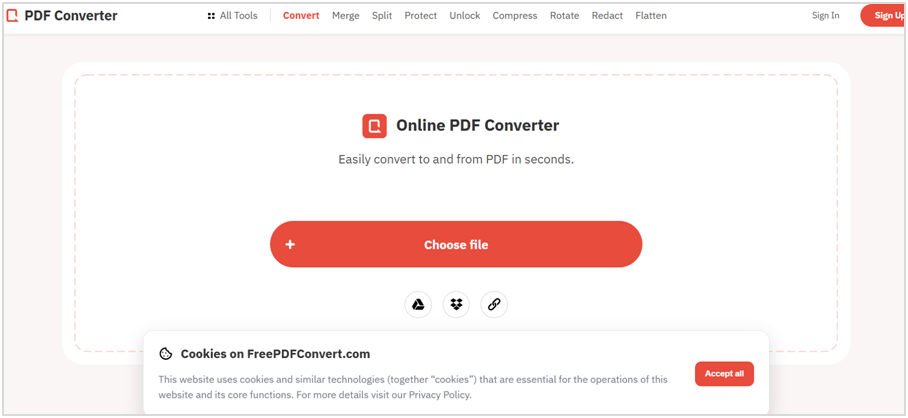
Second, freepdfconvert is noteworthy for enabling users to convert PDFs without having to register immediately. Anybody can simply visit the site and upload a document. For a quick need, such as converting a brief Word document or a handful of pictures to PDF, the free tier suffices.
It supports just two pages for free. Then the site nags for signup and charges to unlock more functions. Several users have taken issue with this, as the site’s name and landing page convey the impression that the service is completely free.
The platform places a large emphasis on document security. Files are sent via encrypted transfers and the website states that it deletes uploads quickly. This configuration assists with privacy, which is important if you’re handling sensitive information, such as contracts or ID scans. A few users express concerns about the trustworthiness of these security assurances as bad experiences or refund battles can make trust more difficult to establish.
Options for what to convert are wide. PDFs can be uploaded and converted into Word docs, JPEGs, and PowerPoint slides. The opposite goes as well. Excel files or image collections can be converted to PDFs with just a few clicks. For instance, folks dealing with scanned receipts can combine them into a single PDF. A PDF resume can be converted back to an editable Word doc. The site’s toolset attempts to address a broad and eclectic mix of needs, which can be useful for students, cubicle jockeys, and anyone else dealing with mixed file types.
Because the design is simple, the majority of users can upload, select a format, and initiate a conversion in a minute or less. No menus and no pop-ups interfere. Real-world usage can be hit or miss. Some experience broken conversions or failed uploads, particularly in Firefox or Safari. Others say it freezes sometimes or the download button never comes up. These bugs can be annoying and doubly so if you’re in a hurry.
Pricing is a sore spot. I think most folks are anticipating a free service, but once you try it initially, the site requests a monthly fee. Others say they are billed multiple times a month or are not receiving refunds as intended. Subscription model and refund issues – TrustScore 1.5/5. This low score echoes typical gripes about hidden fees and hit-or-miss outcomes.
3. Pdf24
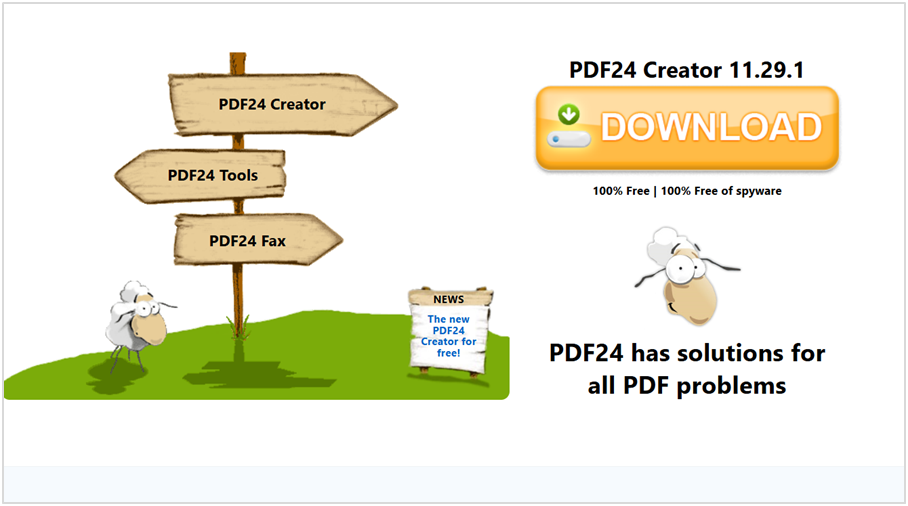
For privacy enthusiasts, all online file transfers come with encryption. Uploads and downloads remain secure. They have more privacy than traditional software since data resides on the user’s computer instead of a server in the cloud.
The service is accessible on a wide variety of devices, including Windows, Linux, and Mac systems, as well as Android and iOS smartphones. This flexibility makes working on the go or from a desktop at the office easy and seamless.
Others may prefer working offline. Pdf24 provides a desktop software for Windows with nearly all the same features as the web version. This is especially useful for work when you’re on the road or dealing with slow net connections.
The desktop app keeps files local, which can be crucial for companies with rigid data policies. Another highlight is OCR. Optical character recognition allows for users to convert scanned PDFs or images into text.
For example, one can scan old printed contracts or receipts and have them converted to digital, searchable files. This avoids retyping and makes archiving a snap. The OCR tool comes with multi-language support and several scan qualities, making it suitable for both personal and business usage.
More than simply converting, it’s about managing documents in a smarter way. Users can redact sensitive info, add watermarks to protect originals, and optimize files for fast web viewing.
The interface remains uncluttered and intuitive, so selecting a task, say compressing a large PDF for email, seems instinctual. For folks wrestling with mountains of paper, these capabilities provide tangible benefits.
One nice add-on is the fax service. Users can send or receive faxes directly from the website, even without a fax machine. This can assist offices that still have fax in the mix or for sending to locations that need stuff faxed to them.
4. Smallpdf
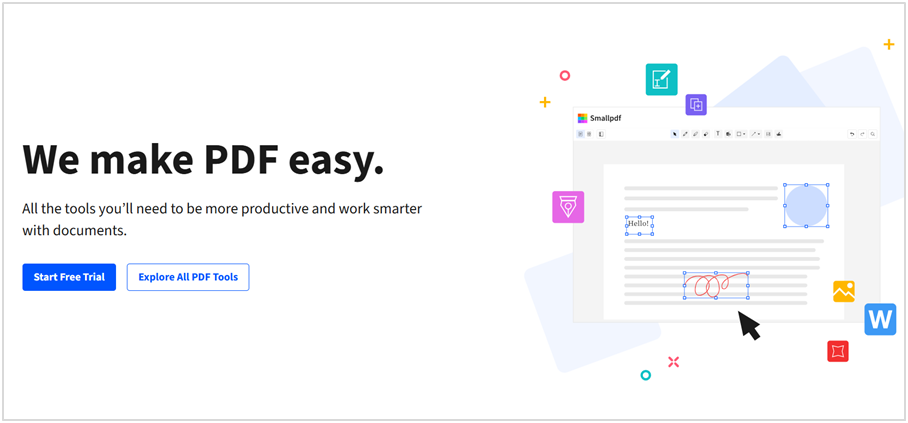
Smallpdf shines for fast, secure, and adaptable document conversion with a straightforward online interface. Renowned for its extensive file support, the site allows you to convert Word documents, PowerPoint presentations, Excel spreadsheets, images, and other files to or from PDF. For instance, an individual dealing with .docx contracts or .jpg receipts can simply upload these and receive in return a PDF ready for sharing or archiving.
That same tool flips PDFs back to Word, which is great for when you need edits on the fly. All of Smallpdf’s tools work in the cloud, so there’s no downloading or installing. Users can use it from a laptop at home, a smartphone on the train, or a tablet in a café. It is browser-based, so swapping between machines is easy.
Files are handled on encrypted servers via 256-bit TLS encryption, so your personal and sensitive documents remain safe. Once converted, Smallpdf removes files from its servers within an hour, unless someone wishes to store a file in their private account for later.
It’s not just about conversion. Smallpdf allows users to edit, compress, merge, or split PDFs. For example, a user could shrink a bulky PDF to send it quickly via email or correct a misspelling in a converted document before forwarding. Their editing and compression tools keep files manageable and professional, whether you’re updating your resume or traveling documents.
The interface is intuitive. Huge, obvious buttons show you exactly what to do at every stage: upload, convert, download. Even an online tool newbie can complete a conversion in a few clicks. Batch conversion is available, so handling multiple files at a time is rapid and effective.
Round-the-clock customer service is always available, with live help on any issues or questions. Smallpdf has a 7-day free trial, providing full access to all premium features, which may be canceled at any time. The Pro plan unlocks unlimited conversions and 30+ other PDF tools, so users with more frequent or complex needs get more value.
All file actions, from uploads to downloads, are done speedily, saving precious time for busy students, professionals, and anyone else working against the clock.
5. Pdfsimpli
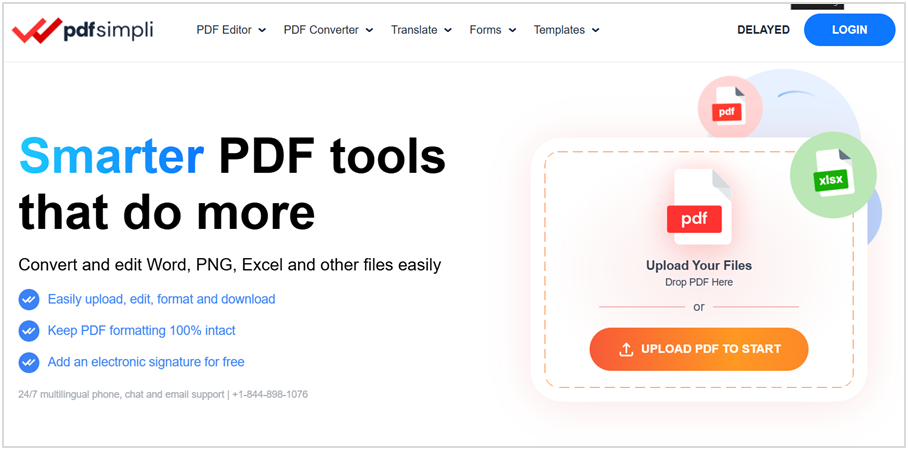
Pdfsimpli is notable for its simple online tool that allows you to convert and edit PDF files with no trouble at all. The hot ticket is its free document converter, which allows users to upload files and convert them to an expansive number of formats. If you have a Word doc or even a webpage that you want to convert into a PDF, PDFsimpli has you covered.
There is even an easy PDF how-to for capturing a page as a PDF, with concise, step-by-step instructions depending on which browser you use, ensuring zero confusion. Drag and drop files is easy here. Simply take any document on your desktop and drag it into the upload box. It immediately grabs the file from the site, and you specify the output type you require.
For instance, you’ve got a scanned image or a spreadsheet. Uploading is a matter of seconds, and the conversion gets underway immediately. There are no additional steps and no waiting for emails. The entire experience is quick and slick.
Real-time previews remove concern about mistakes when converting. When you upload your file, PDFsimpli displays a live preview of the output before saving or downloading. This is handy when you want to see if the formatting held or if important images were transmitted. If you catch something amiss, you can always go back and correct it before submitting.
For instance, after converting a PowerPoint slide, you can flip through every page to verify that titles, images, and bullet points all appear as anticipated. Editing tools on PDFsimpli are all designed for versatility. They can highlight, strikethrough lines or add text wherever it’s necessary.
Perhaps you’ve got a contract to mark up, a form to complete, or just want to cross out some outdated parts. These operate directly in the browser. There’s a ‘Pointer’ icon that allows you to adjust the color and line width of your annotations, so they pop or blend as needed.
There’s the ability to upload images, which is convenient for including logos or other graphics onto a PDF. Sign docs in four ways: type, draw, upload an image, or use a saved signature, so you can complete paperwork without printing.
Navigation is a breeze with a guided interface. Icons and step-by-step tips guide you through each stage, from upload to conversion to editing. Regardless of your expertise, it is simple to search or reverse an edit if you are a mess.
6. Xodo
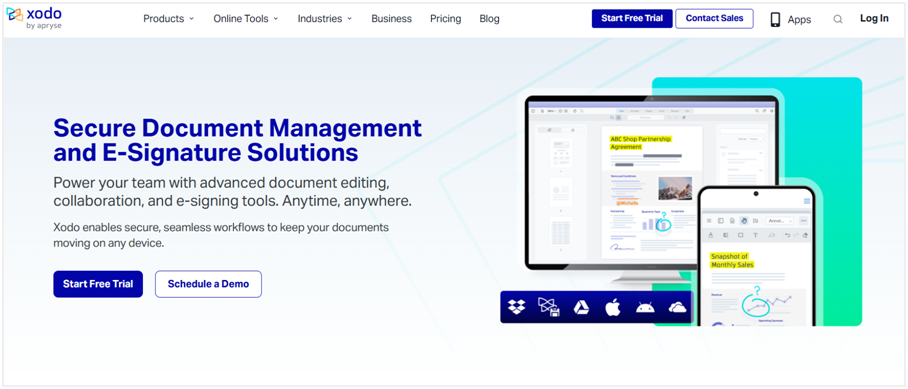
Xodo is different in its mobile-first approach, allowing users to edit and convert documents on the go. Be it on a train or between meetings, the app flies on phones and tablets, so files can be tackled without waiting to get back to a computer.
The tools span over 30 PDF tasks. So, say you need to sign a contract, compress a resume, split a report, or merge bills, Xodo has free tools for all those tasks.
A neat feature of Xodo is its collaboration system. Teams can annotate, highlight, and even draw shapes on the same document simultaneously. This is useful for project groups who want to discuss a PDF draft together, or if colleagues want to approve changes before sending files to clients.
Rather than sending files back and forth, everyone can view updates live, reducing miscommunication and saving time.
Cloud storage is another plus. Xodo links up with Google Drive, Dropbox, and more, along with its own Xodo Drive for Pro subscribers. Xodo Drive offers up to 5GB of storage, providing ample room for hundreds of average documents. This way, files remain secure, and users may open them from any device if they are pulling up a PDF on their phone in a café or on a laptop in the office.
The cloud link means you do not have to email large attachments, just share a link. The clean interface means Xodo is very straightforward to use, even for those who don’t work with PDFs frequently.
The home page lists all tools in straightforward terms, such as ‘PDF to Word’ or ‘Compress PDF’. Tasks just take a couple of clicks—select a file, select what to do, and download.
For instance, a PDF can be converted to a Word or Excel document and then saved directly to a device. Xodo PDF Studio, which runs offline, lets users convert PDFs and use OCR to extract text from scanned pages.
This is useful for making paper documents editable. Certain capabilities, such as enhanced OCR and additional storage, require a Pro plan. There’s a 7-day free trial to try it all out first.
Since Xodo works on Mac, Windows, and Linux, pretty much anyone can use it. The tools are solid both for quick edits and larger works. For anyone wanting to easily edit, annotate, or convert PDFs, Xodo offers a lot.
7. Docs Howly
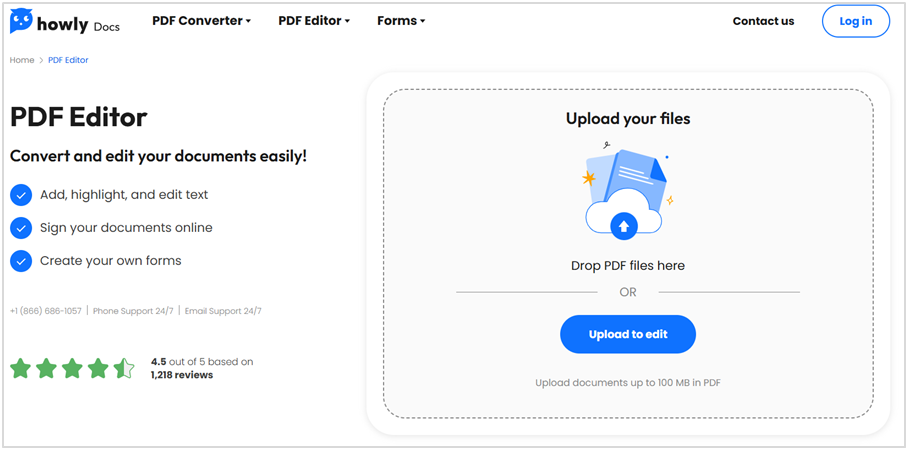
Docs howly provides you with the ultimate document converter that makes managing files a lot less scary. Built for all types of users, the platform supports multiple file types and promises to maintain layouts, fonts, and tables during the transition. For instance, users can add a graph and chart-filled PDF, and the system tries to preserve that same aesthetic in the resulting DOCX or XLSX file.
This is particularly useful when working with business reports or other files that need to look a certain way. Working with complex files can sometimes mean dealing with broken links or lost images. Docs howly emphasizes pro-level features designed to steer clear of such challenges.
The platform’s conversion engine prioritizes maintaining the original formatting, so users don’t have to waste additional time tidying up the output. For example, a marketing team required to distribute new brochures in various formats can count on the tool to preserve all the images and branding. This can save hours, particularly for teams processing a large number of files per week.
Ease of use is a definite strong point. The interface remains clean, so anyone can quickly upload, convert, and download documents without having to swim through confusing menus. Even fresh users and tool veterans alike will navigate quickly.
It is a guided platform with step-by-step prompts and support channels. We have real user stories of people getting quick, transparent resolutions from support, with some reporting things being fixed on the first touch. Speed is another advantage. Rapid turnaround times allow users to maintain the momentum of their workflow without delays.
For example, a student can upload a batch of lecture notes and have them ready in minutes, saving hours. Business users experience increased productivity since they can perform bulk conversions when deadlines are looming.
With all this said, there are caveats. Most of the feedback online is for howly, not docs howly, so exact specifics are difficult to nail down. Many consumers have been hit with surprise fees, such as £24 or $39, and have had difficulties either getting a refund or unsubscribing.
Others caution a lack of transparency. There are users who say the support crew was cool and resolved their problems quickly. There are a few emails and phone numbers to contact, so mixed reviews make it prudent to review the terms before registering.
Conclusion
It’s a pain to convert docs from one format to another. These utilities make it quick and seamless. Sites like convertpdf and smallpdf help you cut out the clutter and obtain tidy files in moments. Don’t waste time with clunky steps or downloads.
Need to mail a contract or share class notes? Simply select your document and allow the software to take over. Both platforms make it easy to get this done quickly, so you can get on with your day.
To save even more time and hassles, give one of these a whirl next time you require a rapid file conversion. Discover the pace that matches your workflow and return to what you do best.