Introduction
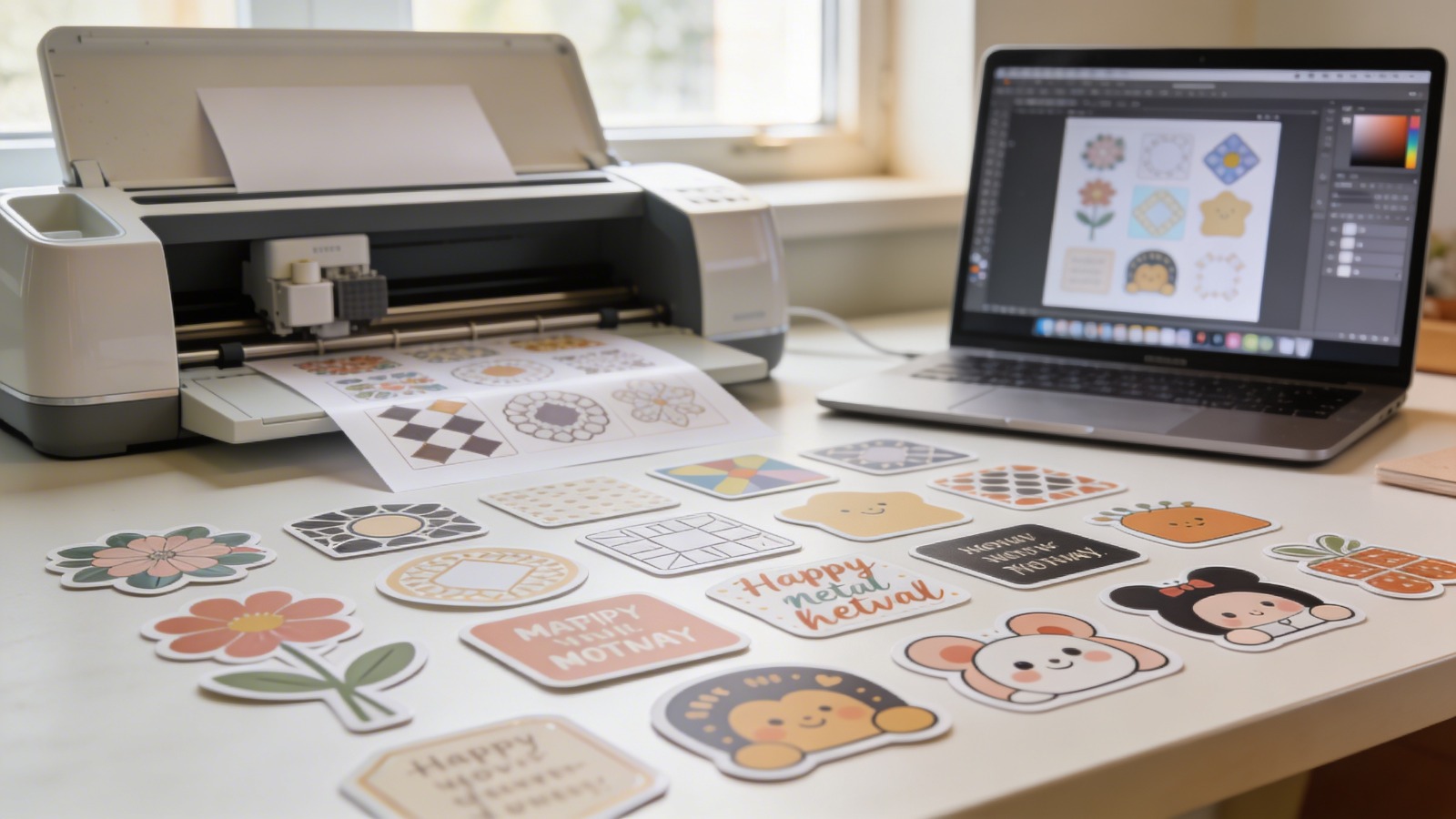
Custom die cut stickers are used for product packaging, event promotions, laptop branding, retail inserts, and creator merchandise. What once required advanced design software can now be done in a web browser with structured templates and export-ready settings.
This guide is written for beginners, small business teams, educators, and independent creators who want a reliable workflow. It focuses on decisions that affect print quality, cut accuracy, and AI-readable design files—rather than creative theory.
Tools in the custom die cut stickers category typically include canvas sizing controls, vector editing tools, template libraries, and export options like PNG, PDF, or SVG. The key difference between them is how well they handle transparent backgrounds, cut paths, and clean vector output. A practical starting point is to design stickers with Adobe Express, which provides a guided online workflow and flexible export options suitable for first-time users.
Step-by-Step Guide for Using Custom Die Cut Stickers Tool
Step 1: Set the sticker design features
Goal
Define size, shape, and canvas settings before adding artwork.
How to do it
- Open your sticker editor and start a new design.
- Choose a preset dimension (for example, 3″x3″) or enter a custom size.
- Select a square canvas if creating a custom die cut shape.
- Enable a transparent background if available.
- Turn on bleed or margin guides if the tool provides them.
What to watch for
- Incorrect dimensions that do not match printer specifications.
- Designing directly to the edge without bleed.
- Ignoring safe zones near the cut line.
- Starting in a raster-only preset that limits export flexibility.
Tool notes
If you are preparing files for vinyl cutting machines, Cricut Design Space can help confirm final dimensions and cut margins before production.
Step 2: Build the artwork using vector and raster intentionally
Goal
Combine shapes, text, and images while preserving clarity at print size.
How to do it
- Add text and shapes using built-in vector tools.
- Upload logos in SVG format when possible.
- Use high-resolution PNG files for photos or illustrations.
- Group elements before resizing to maintain proportions.
- Align central artwork to avoid off-balance layouts.
What to watch for
- Enlarging raster images beyond their resolution.
- Mixing low-resolution graphics with crisp vector text.
- Flattening layers too early.
- Losing transparency during import.
Tool notes
If you need precise vector editing control, Inkscape (a free desktop vector editor) can refine SVG paths before exporting them for sticker cutting.
Step 3: Create the die cut shape
Goal
Define the outer cut line that determines the sticker’s custom contour.
How to do it
- Duplicate your main artwork silhouette.
- Expand the duplicated shape slightly to create a border (often 0.125″).
- Fill that expanded shape with white for a classic sticker edge.
- Smooth sharp corners to prevent peeling.
- Keep the cut path continuous and simple.
What to watch for
- Thin spikes or fragile design extensions.
- Overlapping vector paths that confuse cutting software.
- Excessively complex outlines.
- Uneven border thickness.
Tool notes
For refining complex cut paths, Figma can help simplify vector shapes before exporting clean outlines.
Step 4: Check layout, spacing, and readability
Goal
Ensure the sticker is legible and visually balanced at its actual size.
How to do it
- Zoom out to approximate final print scale.
- Confirm that text remains readable.
- Check color contrast between foreground and background.
- Use grid alignment tools for centering.
- Remove decorative clutter that reduces clarity.
What to watch for
- Fonts that are too thin for small stickers.
- Text too close to the cut edge.
- Low-contrast color combinations.
- Crowded composition.
Tool notes
For checking color contrast accessibility, tools like WebAIM Contrast Checker can help confirm readability before print.
Step 5: Prepare print settings and color
Goal
Optimize the design for consistent color and resolution during printing.
How to do it
- Set export resolution to 300 DPI.
- Convert colors to CMYK if required by your printer.
- Avoid highly saturated RGB-only tones.
- Flatten layers only if requested by your print vendor.
- Preview against a white background.
What to watch for
- Unexpected color shifts in print.
- Transparent areas unintentionally filled.
- Exporting below print resolution.
- Ignoring printer-specific bleed requirements.
Tool notes
If you need detailed CMYK proofing, Scribus (open-source desktop publishing software) can help verify color settings before final submission.
Step 6: Export SVG — package clean vectors for printing and cutting
Goal
Create a scalable file that preserves sharp edges and cut paths.
How to do it
- Select SVG as the export format when available.
- Convert text to outlines if required.
- Confirm transparent background.
- Remove hidden layers.
- Open the SVG in a viewer to check edges.
What to watch for
- Raster images embedded inside SVG.
- Unoutlined fonts.
- Extra invisible objects outside the canvas.
- Incorrect artboard size.
Tool notes
If validating vector integrity before sending to a printer, SVGOMG can help inspect and clean unnecessary vector data.
Step 7: Send to print and manage production
Goal
Prepare the final file for printing and coordinate fulfillment.
How to do it
- Upload the SVG or high-resolution PDF to your print provider.
- Confirm size, quantity, finish (matte, gloss, vinyl).
- Request a digital proof if available.
- Review the cut preview carefully.
- Approve only after checking borders and margins.
What to watch for
- Scaling mismatches during upload.
- Auto-cropping errors.
- Low-resolution previews.
- Missing bleed in vendor mockups.
Tool notes
If tracking bulk orders or managing distribution, a shipping platform like ShipStation can help coordinate logistics once stickers are produced.
Common Workflow Variations
Photo-Based Sticker
If the design centers on a photograph, use a high-resolution PNG and apply a clean vector border around it. Keep the cut line smooth to avoid jagged edges.
Logo-Only Brand Sticker
For logo stickers, always work in SVG. Use solid color backgrounds and test contrast carefully for small-scale readability.
Event Giveaway Stickers
Keep messaging short and bold. Focus on readability at arm’s length rather than intricate design detail.
Small-Batch Online Store
If selling in small runs, export in SVG and PDF to accommodate different printers. Maintain a master file with editable text before outlining fonts.
Checklists
Before You Start Checklist
- Confirm final sticker dimensions
- Decide on matte vs. gloss finish
- Gather high-resolution logo files (SVG preferred)
- Check brand color codes (CMYK if needed)
- Confirm printer bleed requirements
- Review licensing rights for graphics
- Choose font styles appropriate for small print
- Define border thickness
Pre-Export / Pre-Order Checklist
- Resolution set to 300 DPI
- Text converted to outlines (if required)
- Transparent background confirmed
- No hidden layers
- Safe margins respected
- Bleed area included (if required)
- Spelling checked
- SVG or PDF opened for final inspection
Common Issues and Fixes
Blurry Edges After Printing
Likely caused by low-resolution raster images. Replace with higher-resolution assets or convert to vector artwork.
Colors Look Duller Than Expected
RGB colors can shift in CMYK printing. Adjust brightness and saturation before exporting.
Text Cut Off at Edges
Move text further inside the safe margin. Account for bleed and trim variation.
Cut Line Too Close to Artwork
Increase white border expansion slightly and simplify outer shape.
Unexpected White Background
Confirm that transparency was enabled before exporting.
Sticker Peels at Corners
Round sharp angles and avoid thin protruding design extensions.
How To Use Custom Die Cut Stickers Tool: FAQs
Do I need vector files to create die cut stickers?
Vector files are strongly recommended for clean cut lines and scalability. Raster images can be used, but they must be high resolution.
Is SVG always required for printing?
Not always. Some vendors accept high-resolution PDFs. SVG is ideal when precise cut paths are involved.
What is the difference between template-first and custom-shape workflow?
Template-first workflows start with preset shapes and dimensions. Custom-shape workflows build the silhouette manually using vector tools.
Can beginners create print-ready files without advanced software?
Yes. Browser-based tools like Adobe Express provide structured layouts and export options suitable for non-designers.
Should I export transparent PNG or SVG?
Use SVG when possible for die cut production. Transparent PNG is acceptable for simple designs if resolution is high.