
While pop-up ads and browser tracking aren’t always a bad sign of infection, it can make your Windows PC feel off-putting or unsafe to use. The browser might begin to display an excessive number of ads, make unexpected redirects to sites you don’t know, or be slower to load. Sometimes, it is easily explainable because of excess tracking scripts, unwanted changes in the browser settings, or ad-supported software. Other times, spyware, adware, phishing links or startup items may be present and running quietly in the background.
Typically, a privacy cleanup is performed in a sequence of steps, such as determining the computer’s security status, running a scan, assessing the findings of the scan, locking the browser, and ensuring that real-time guards continue to run after the cleanup. There is one tool which is made for this type of process: IObit Malware Fighter, a totally free antimalware for Windows. Version 13 is dedicated to the ability to scan for malware, protect your browser, block tracking and stop threats like spyware, ransomware, Trojans, adware and suspicious system activity in real-time.
The following setup explains how each part of the software can fit into a basic privacy and pop-up reduction routine.
Start by Checking the Current Protection Status
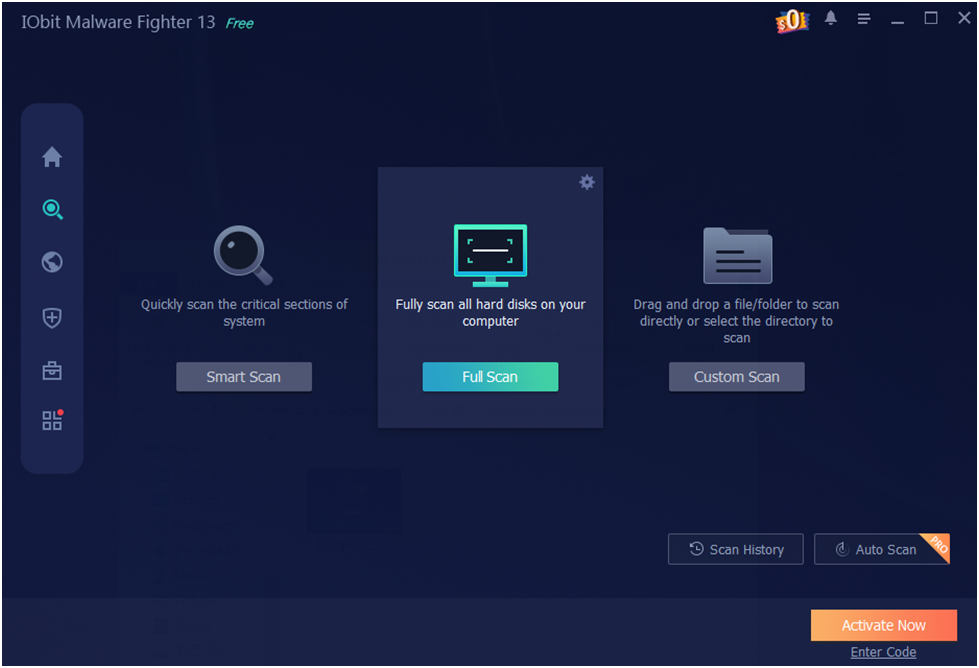
The main screen is the place where one begins, since it provides a brief view of how protected the computer is. Users don’t need to navigate through the different Windows settings or browser menus–the main areas of security can all be viewed from one location.
This is helpful in case any pop-ups or tracking issues crop up out of the blue. It’s beneficial that you check if protection features are activated and if a scan should be performed before you make any changes to the browser settings, or if a file needs to be removed manually. The primary screen also serves as a control centre for scanning, browser protection and security guards.This is the first step and cannot solve all problems on its own; users need to understand where to start.
Scan Mode: Choose the Type of Check That Matches the Situation
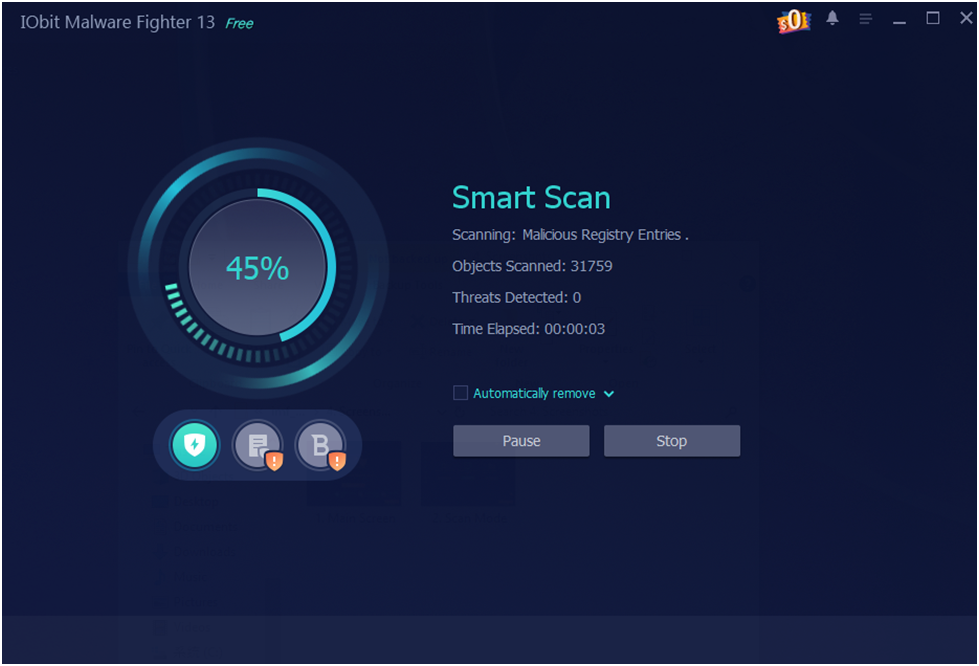
Once you view the main dashboard, you will need to determine the type of scan you will use. Not all concerns have the same scope of scanning needs. Routine maintenance might require a quick check, while a more thorough one is more appropriate if the pop-ups, redirects, and unusual browser behaviour continue to recur.
IObit Malware Fighter 13 now includes the ability to scan Suspicious Startup Items, Services and Scheduled Tasks. This is important since there are some applications that try to start up automatically when Windows is started. Failure to check these types of items can result in them reappearing after a computer reboot.
You can enhance the cleaning process by selecting the right scan mode, preventing unnecessary actions.
Smart Scan: Look for Common Privacy and Malware Issues
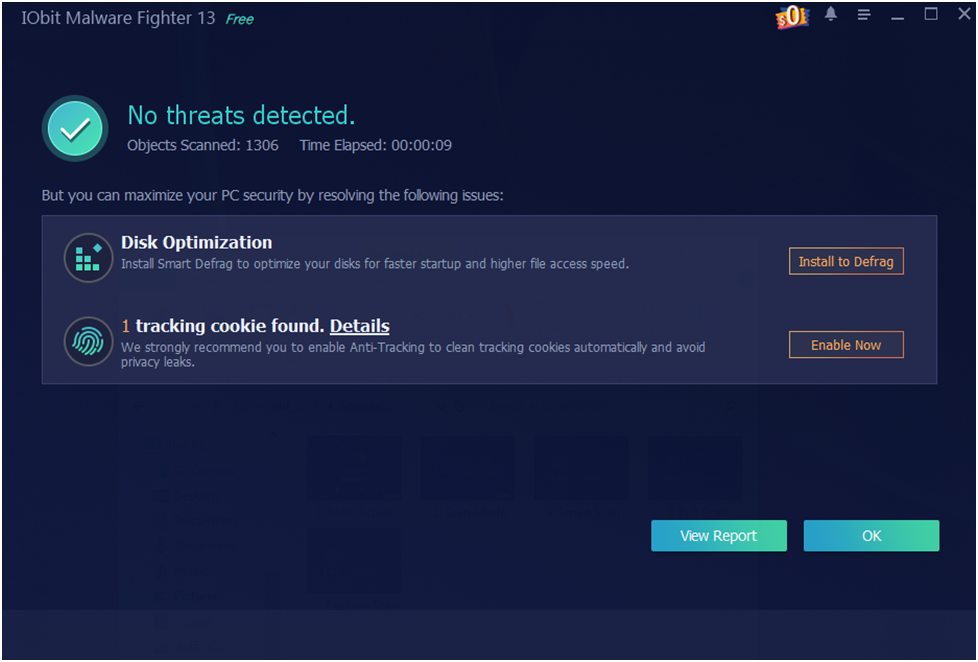
Smart Scan is targeted at people requiring a simple means of assessing common risk areas. It emphasises the places where unwanted adware, spyware and browser issues typically occur.
A very important one is that in the event of pop-up problems, unwanted ads may stem from multiple sources. These can be associated with risky downloads, shady extensions, tampered browser settings or software installed during the installation of another program. A scan can identify them instead of the user having to guess.
It’s updated with enhanced intelligent protection and with an increased threat database that can provide protection for known threats and suspicious behaviour. However, scanning should be part of a broader privacy practice; it should not replace safe browsing, software and downloading updates, or good downloading and browsing practices.
Results: Review What Was Found before Cleaning
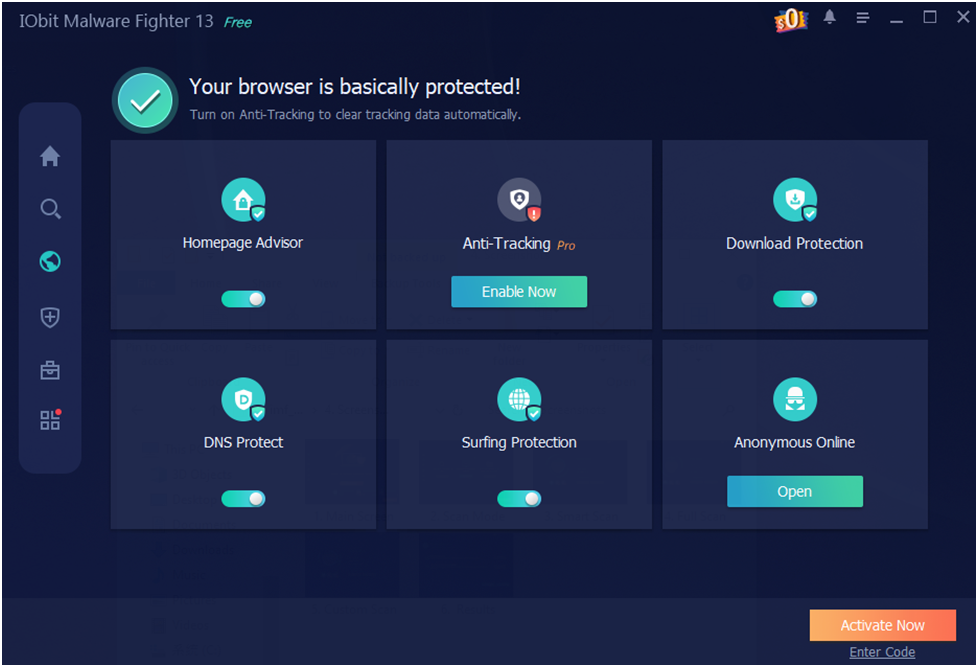
After the scan is complete, there will be an important results page. Users can check what software discovers here and make a decision about what to remove or fix.
Sometimes it is helpful to have a results screen which will allow you to see which items are detected as lower risk and which are higher risk. There are a few items that can be adware or problematic files, and others that may be about startup items, privacy history trackers, or browser-related dangers. By looking at the results, it will help the user understand the cause of problems such as pop-ups, tracking or even unstable surfing.
The step also allows users to avoid blind cleanup. Users can delete the files they have scanned at their convenience and remove issues detected from a scan report at a controlled rate instead.
Browser Protect: Reduce Tracking, Unsafe Pages, and Browser-Based Risks
Numerous privacy issues start in the browser. A range of advertising and security issues could impact the way your users are browsing online. Pop-ups, phishing, risky downloads, browser hijacking, and tracking scripts can cause many browser issues. Once the threats have been detected, the next logical step is browser protection.
Browser Protect also includes amongst its features anti-tracking, surfing protection, download protection, homepage protection, DNS protection and ads removal. Surfing Protection features the latest Google Safe Browsing technology, and Anti-tracking has been enhanced for more recent browsers in 13. Surfing Protection incorporates the most recent Google Safe Browsing innovation, while Anti-tracking is further developed for more recent browsers in 13.
This doesn’t mean that all of the ads on the internet will cease to exist, nor does it mean that your online anonymity will be guaranteed. It can, however, help minimise exposure to unsafe locations, unwelcome tracking, and threats, which are common in browsers and can result in popups or concerns regarding privacy.
Security Guards: Keep Protection Active After Cleanup
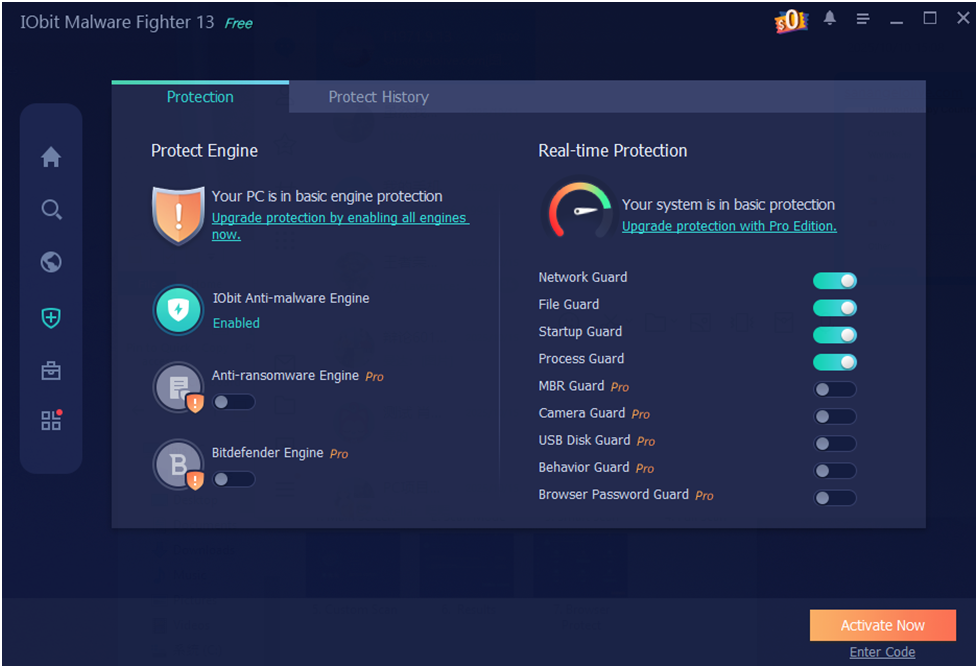
The final step is keeping real-time protection active. One cleaning might address the issue at hand, but new dangers can emerge later on from downloads, email attachments, using USB devices, websites or installed programs.
IObit Malware Fighter has a number of security guardians which monitor files, network, startup items, processes, USB devices, camera access, browser passwords and system behaviour. These guards are not just meant to catch on-hand data scans, but also when the computer is in use.
Version 13 also comprises enhanced Behaviour-Based Protection and API Monitoring at the kernel level. The features are designed to detect suspicious activity in advance, particularly if a threat is not as cryptic as a virus file.
If users are experiencing frequent pop-ups or privacy issues, real-time protection lowers the likelihood of such issues happening again in the future.
Conclusion
In other situations, pop-up ads and browser tracking can originate from various sources, which may mean it takes more than closing a browser window or uninstalling a particular browser extension to correct all this. Please go through these steps: System Status and scan for “suspicious items”, review matched results carefully, increase browser security and leave real-time guards on.
IObit Malware Fighter 13 Free offers a straightforward process that connects with Windows-based systems. It unites antivirus, web protection capability, anti-tracking, start-up item tests, and live security guards in a single user interface. It should still be used in conjunction with good Security Practices, including keeping Windows up to date, avoiding suspicious downloads, using strong passwords and making copies of important files.
If you prefer a simple privacy protection program to eliminate pop-ups, tracking and the usual form of annoying malware, this is a useful place to begin.