
A few months ago, I noticed that my PC was constantly warning me about low disk space. Applications were loading more slowly, Windows updates took forever to install, and my computer simply didn’t feel as responsive as before. I wanted an easy way to clean up my system without manually searching through dozens of folders.
After trying Advanced SystemCare 19, I was surprised by how much hidden junk it found. As a Windows cleaner and PC cleaner, it helped me recover several gigabytes of storage while making my computer run more smoothly. In this article, I’ll share what I learned, what causes storage to disappear, and how I used Advanced SystemCare 19 to free up valuable disk space.
Why My Disk Space Kept Disappearing
Before using any cleanup tool, I wanted to understand where all my storage was going. I realized that most of the missing space wasn’t caused by my personal files but by hidden system data that quietly accumulated over time.
1. Hidden Windows Files and Cache
Windows constantly creates temporary files, update leftovers, and cache data. Folders like WinSxS and browser cache directories can silently grow to occupy many gigabytes without most users noticing.
2. Leftover Files from Uninstalled Software
I also discovered that uninstalling a program doesn’t always remove everything. Old installation files, leftover folders, and hidden app data often remain in locations like %appdata% and %localappdata%.
3. Everyday System Clutter
Over time, my computer collected Windows.old folders, memory dumps, recycle bin files, and other unnecessary data. Individually, these files seemed small, but together they consumed a surprising amount of storage.
Why I Decided to Try Advanced SystemCare 19
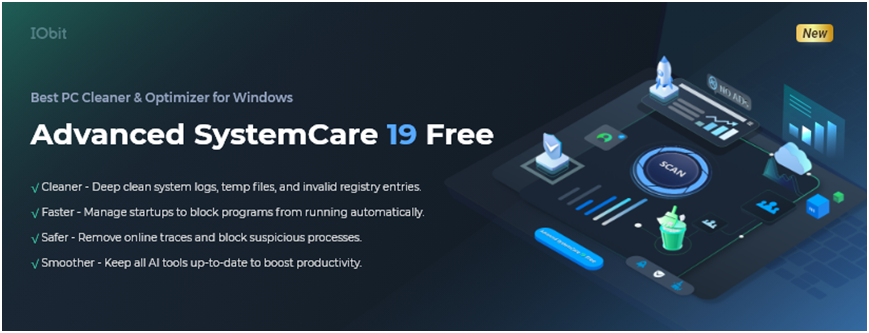
After realizing how much hidden clutter there was, I wanted a solution to automate the cleanup process. Advanced SystemCare 19 stood out for combining PC cleaning, Windows optimization, and storage management in a single application. Instead of relying only on basic Windows Disk Cleanup, it performs deeper scans and detects files that are often overlooked.
What I liked most was that the software, not just a Windows cleaner, also balances aggressive cleanup with system safety by keeping important performance-related cache files when necessary.
Features I Found Most Useful
- Deep scanning for temporary files, logs, and invalid registry entries.
- AI-powered optimization that adapts to my PC usage habits.
- Large File Finder for locating videos, installers, and archives that consume significant storage.
- Disk Cleaner with a clear view of what is taking up disk space.
- Privacy Sweep for removing browser traces and unnecessary internet data.
- Smart RAM and startup optimization tools to improve overall performance.
- Registry cleaning with automatic backups for additional safety.
Step by Step: How I Used Advanced SystemCare 19 to Free Up Disk Space
The entire process was much easier than I expected.
Step 1: Download and Install
I downloaded this PC cleaner from the official IObit website, completed the installation, and launched the program.

Step 2: Use AI to Scan Junk Files
AI Mode is designed to learn from my PC usage habits and optimize the cleanup process automatically. I simply make sure AI Mode is selected before starting the scan. I click the Scan button and let the software examine my system.
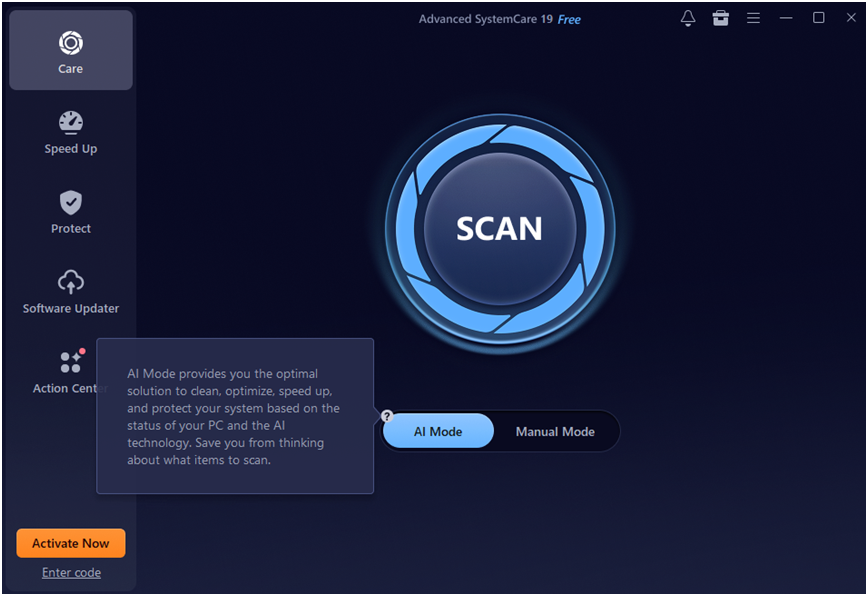
During the scan, it checks for:
* Junk files
* Temporary files
* Browser cache
* Privacy traces
* Invalid shortcuts
* Registry issues
* Windows leftovers
* Other hidden system clutter
The entire process usually takes just a few minutes.
Step 3: Review the Scan Results
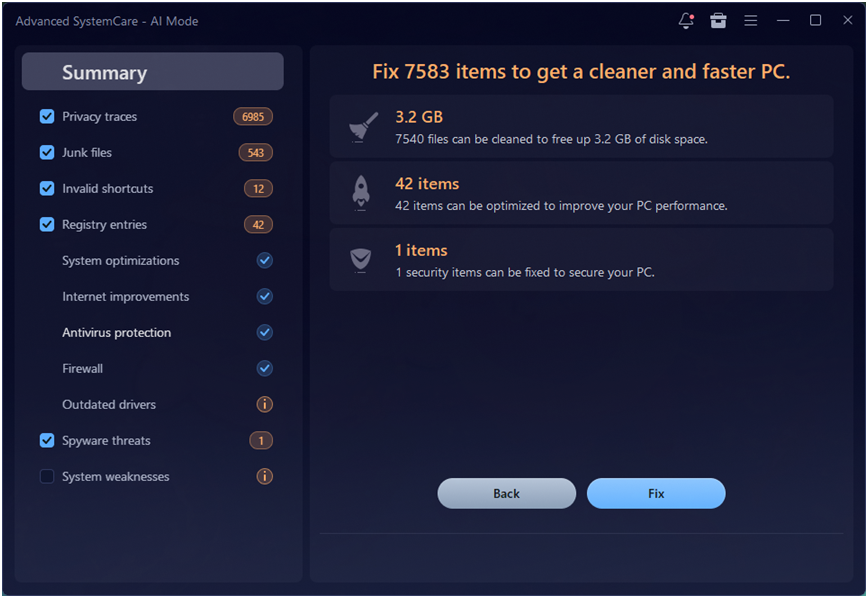
After the scan finishes, Advanced SystemCare displays a detailed report showing what it found and how much disk space can be recovered. I can review the detected items and, if necessary, uncheck anything I want to keep.
Step 4: Clean and Optimize
Once I’m satisfied with the results, I click Fix button. The software automatically removes the selected junk files and optimizes my system.This cleanup helps me:
* Free up valuable disk space
* Remove hidden clutter
* Improve system responsiveness
* Reduce unnecessary background data
Step 5: Enable Automatic Maintenance (Optional)
To avoid storage problems in the future, I turn on AutoCare feature. This allows Advanced SystemCare 19 to run regular AI-powered cleanups automatically in the background, keeping my PC optimized without much manual effort.
Why I Think It’s More Than a PC Cleaner
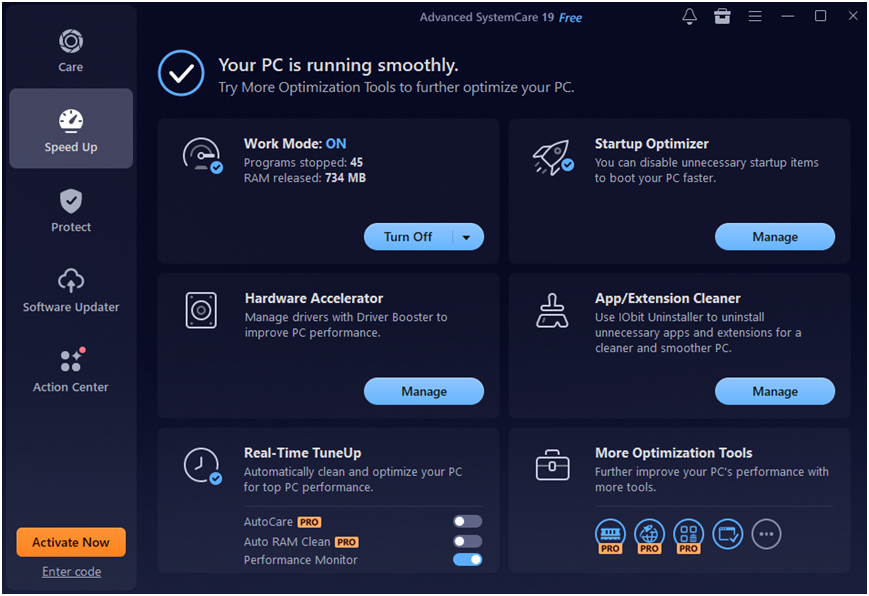
In my experience, simply deleting junk files doesn’t always make a PC feel faster. The bigger improvement comes from reducing background activity and optimizing system resources. For example, after running a cleanup, I often use:
– Turbo Boost for extra performance
– Startup Optimizer to disable unnecessary startup apps
– Smart RAM to release occupied memory
These features work together to make Windows feel more responsive, especially on older PCs.
Small Habits That Help Me Keep My Storage Clean
After seeing how much unnecessary data had accumulated, I started following a few simple habits to avoid the same problem in the future.
– Regularly delete temporary files.
– Enable Windows Storage Sense.
– Use IObit Uninstaller to uninstall software and games I no longer use.
– Move large files to cloud or external storage.
– Schedule a monthly cleanup session.
– Clear Microsoft Store cache when necessary.
– Empty the Downloads folder regularly.
– Disable hibernation if I don’t use it.
– These small maintenance steps help prevent storage from filling up again.
My Final Thoughts
I didn’t realize how much hidden junk was stored on my computer until I actually scanned it. Most of the wasted space came from temporary files, old installation data, browser cache, and software leftovers that I would never have found manually.
Using Advanced SystemCare 19 made the cleanup process simple and stress-free. As both a reliable Windows cleaner and PC cleaner, it helped me recover gigabytes of storage while improving overall system responsiveness.
If your PC constantly runs low on space or feels slower than it used to, hidden junk files may be the cause. In my experience, a deep cleanup with Advanced SystemCare 19 was one of the easiest ways to free up storage and keep my Windows system running smoothly.
FAQs
Q1. Is Advanced SystemCare 19 safe for registry cleaning?
From my experience, Advanced SystemCare 19 performs registry cleaning safely because it creates backups before making changes. I still prefer reviewing the scan results before applying deep fixes.
Q2. Is it safe to delete temporary files and cache data?
In most cases, yes. Temporary files and cache data are designed for short-term use and often become unnecessary over time. Removing them helped me recover storage space without affecting my important files or Windows stability.